Plans & paymentsUpdated
How to add merchandise and show it in the member app
Add gis, rash guards, belts and other gear with your own prices and stock, and show your club store to members in the MatSync app.
Where to find it: Dashboard · Merchandise
Step by step
Add a product
In Merchandise, click Add product. Enter a name, brand and description, and choose a category such as Uniforms / Gis, Rash guards, Apparel or Belts.
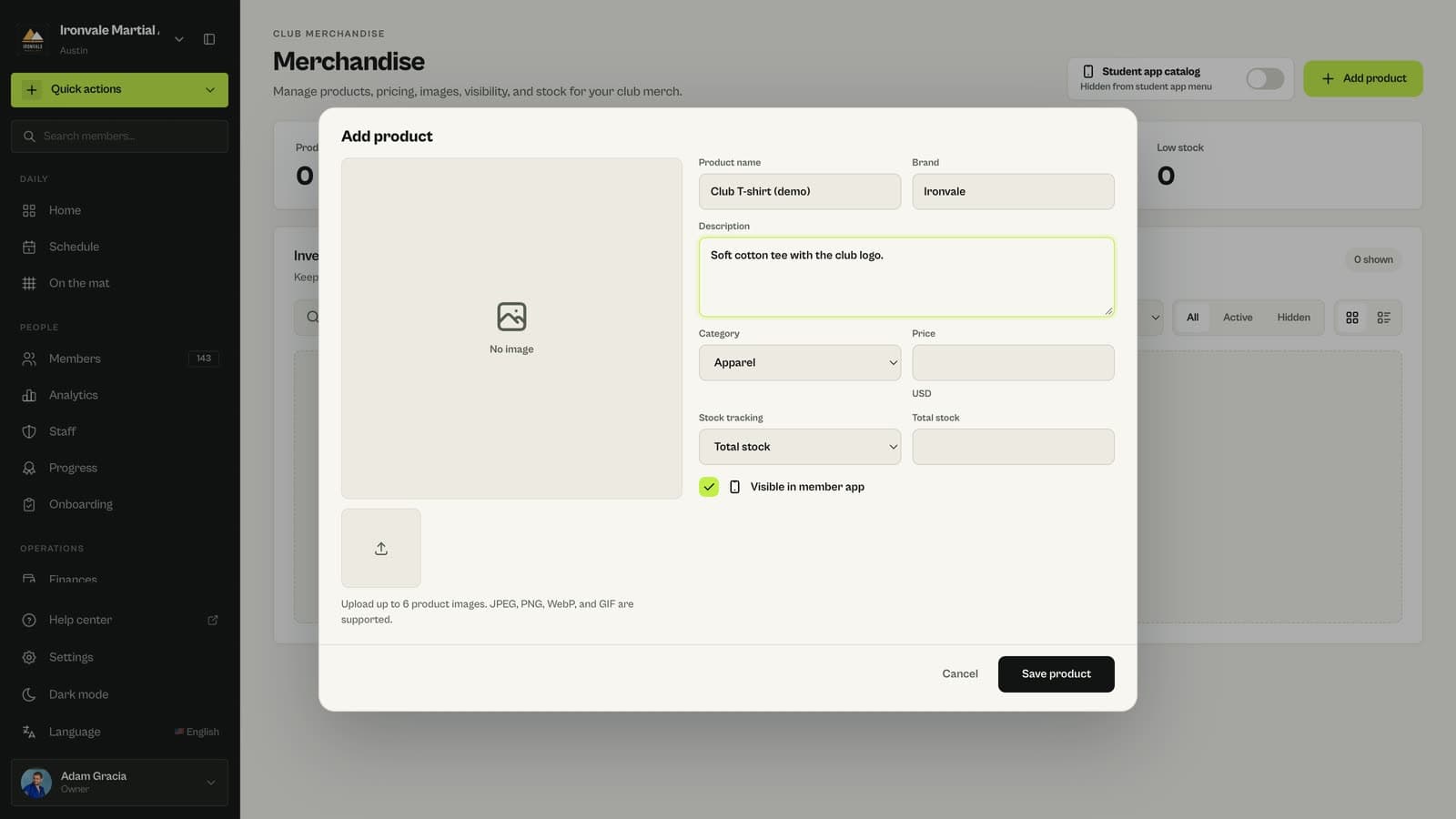
Set your price and stock
Enter your own price and how many you have. Choose Stock by size if you track sizes separately. Upload up to 8 product photos.
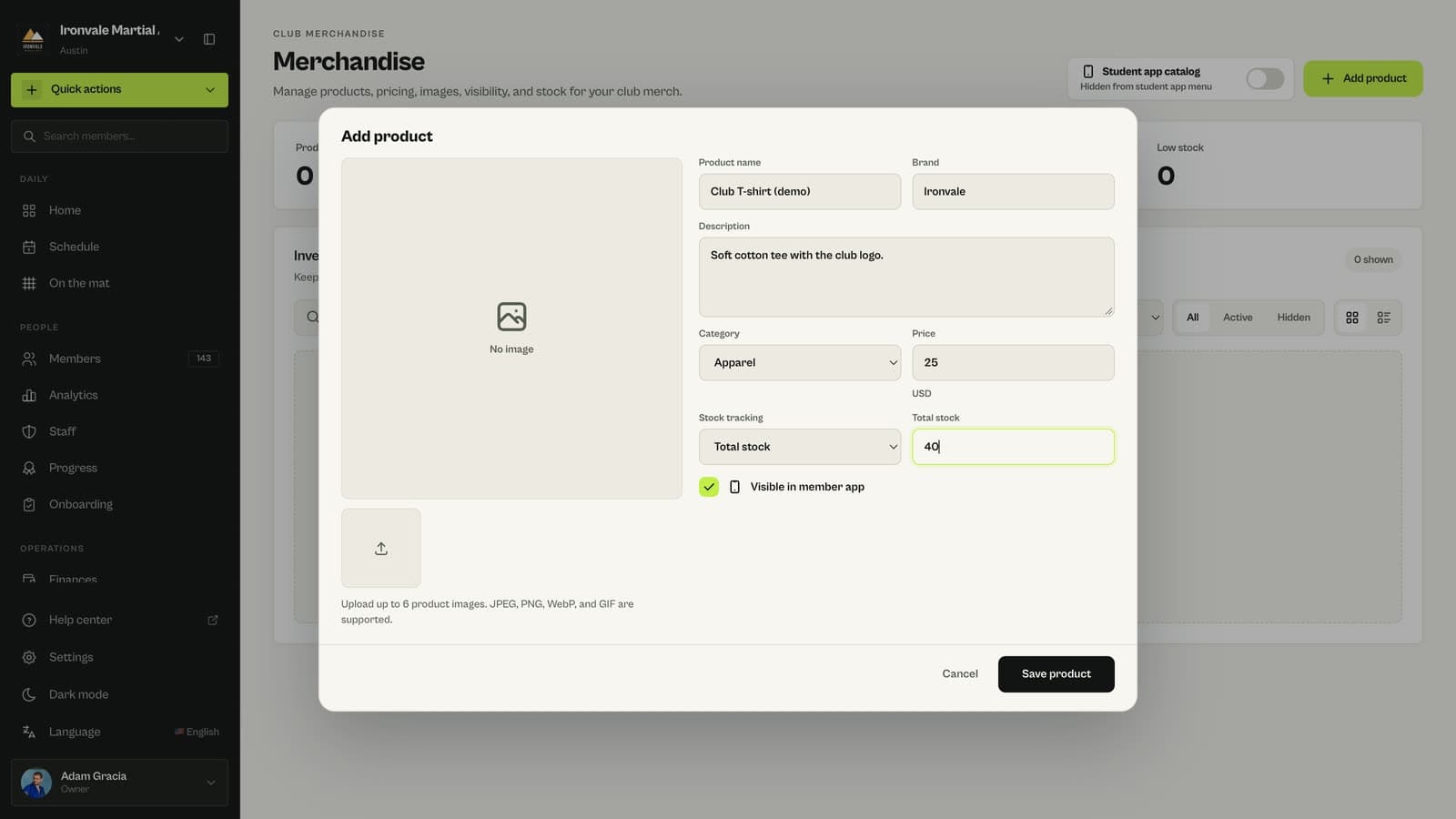
Show the store in the app
Keep Visible in member app ticked and save. Then turn on Student app catalog at the top of the page so members see Merchandise in the app.
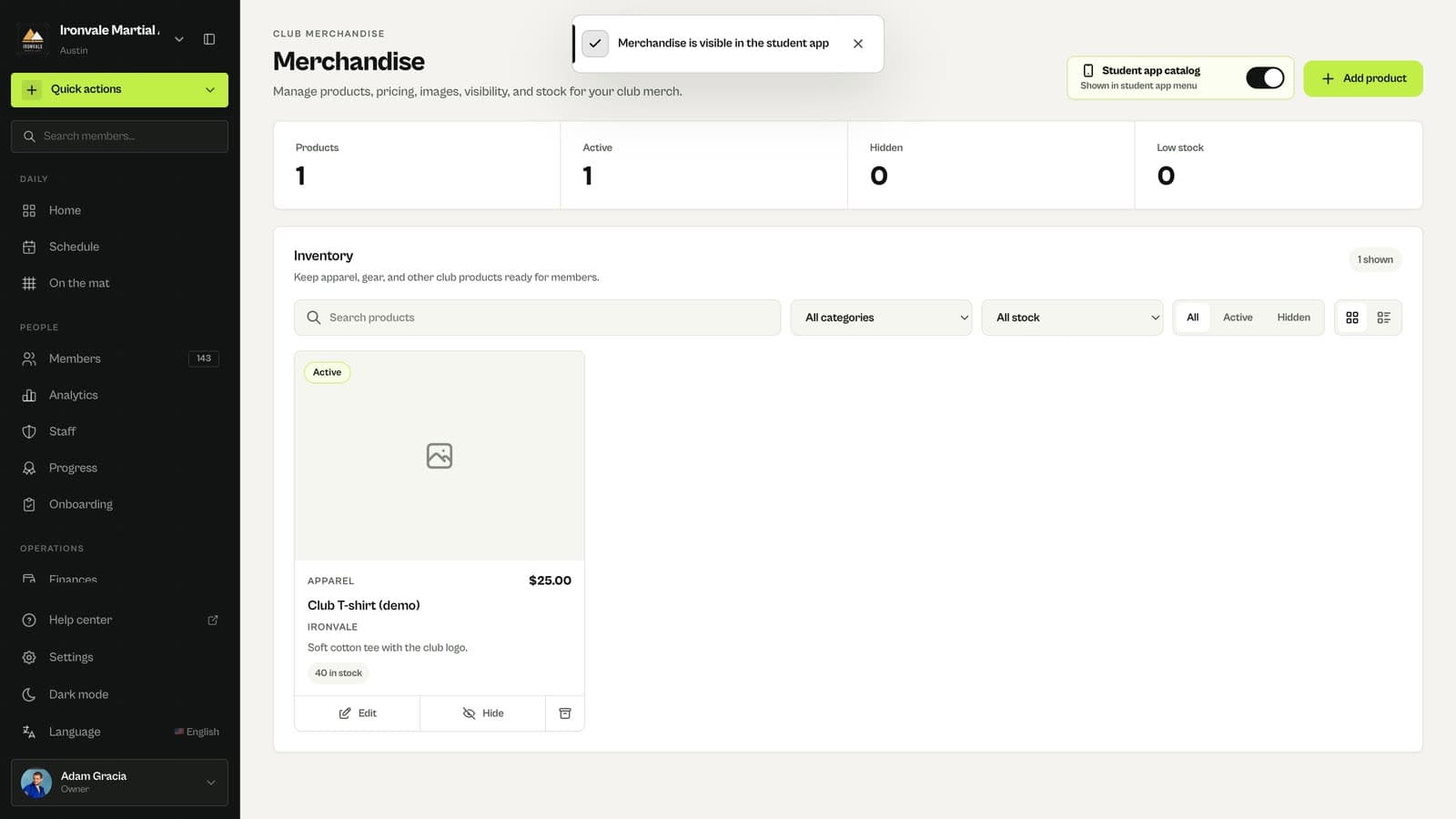
Good to know
- Members find the store in the app under Settings › Merchandise, with a New badge when you add products.
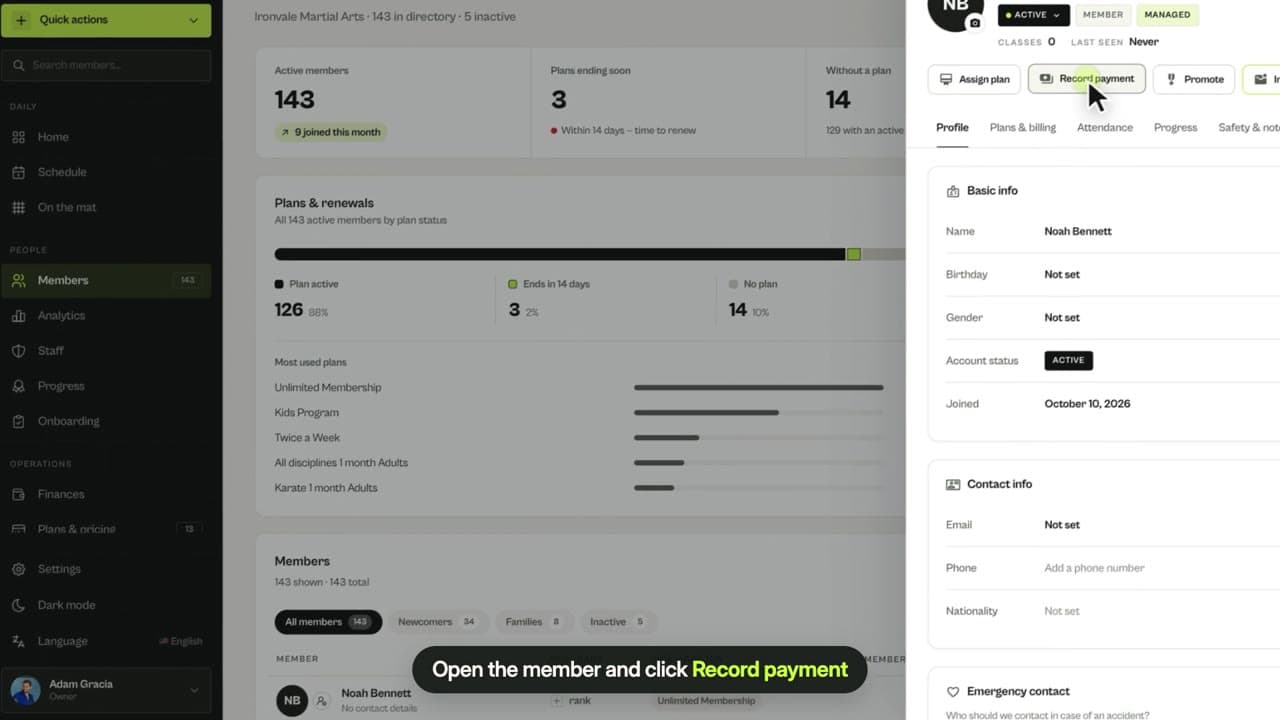
- Purchases happen at the club: the app shows prices and stock and asks members to buy from a coach or the owner. Record the sale with Record payment.
- Use Hide on a product to take it out of the app without deleting it.
Related guides
Run your academy with less admin and more time on the mat.
Start free