How to record a cash or bank transfer payment
Record a manual payment for a member, choose how they paid, and optionally link it to a plan to activate it at the same time.
Where to find it: Dashboard · Member profile › Record payment
Step by step
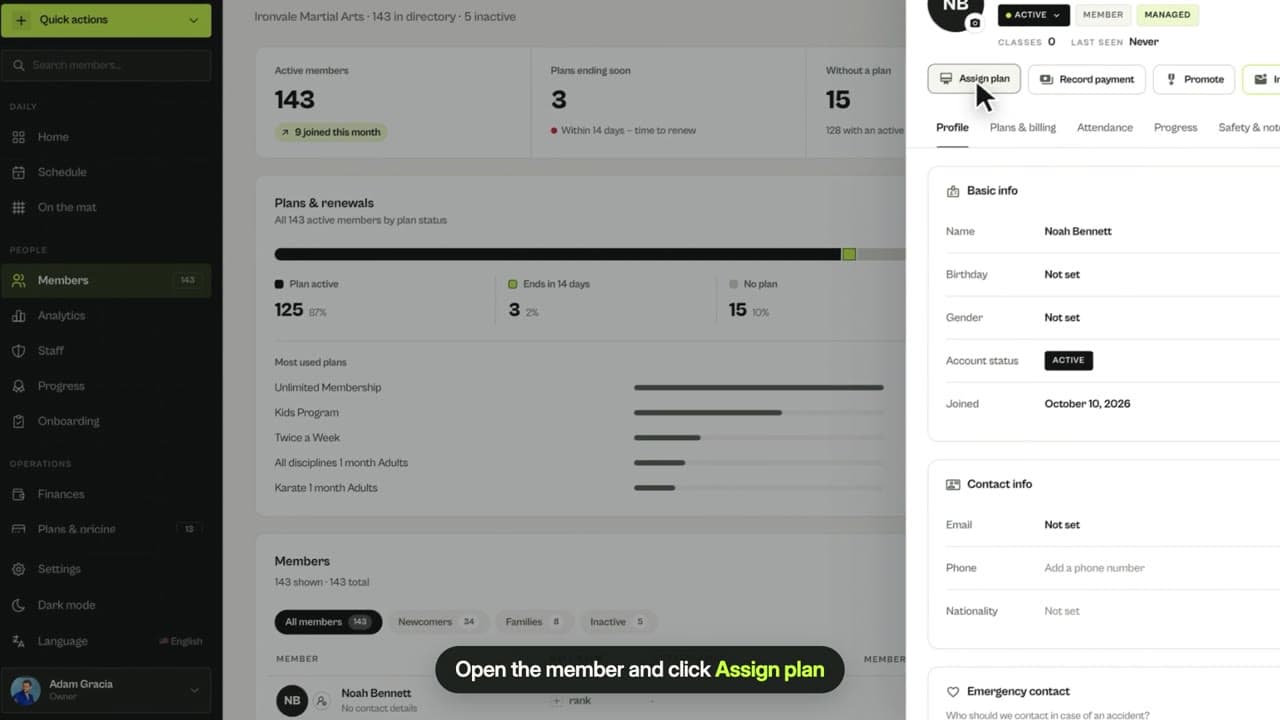
Open the member and click Record payment
Open the member, then click Record payment. Quick actions › Record payment works from anywhere.
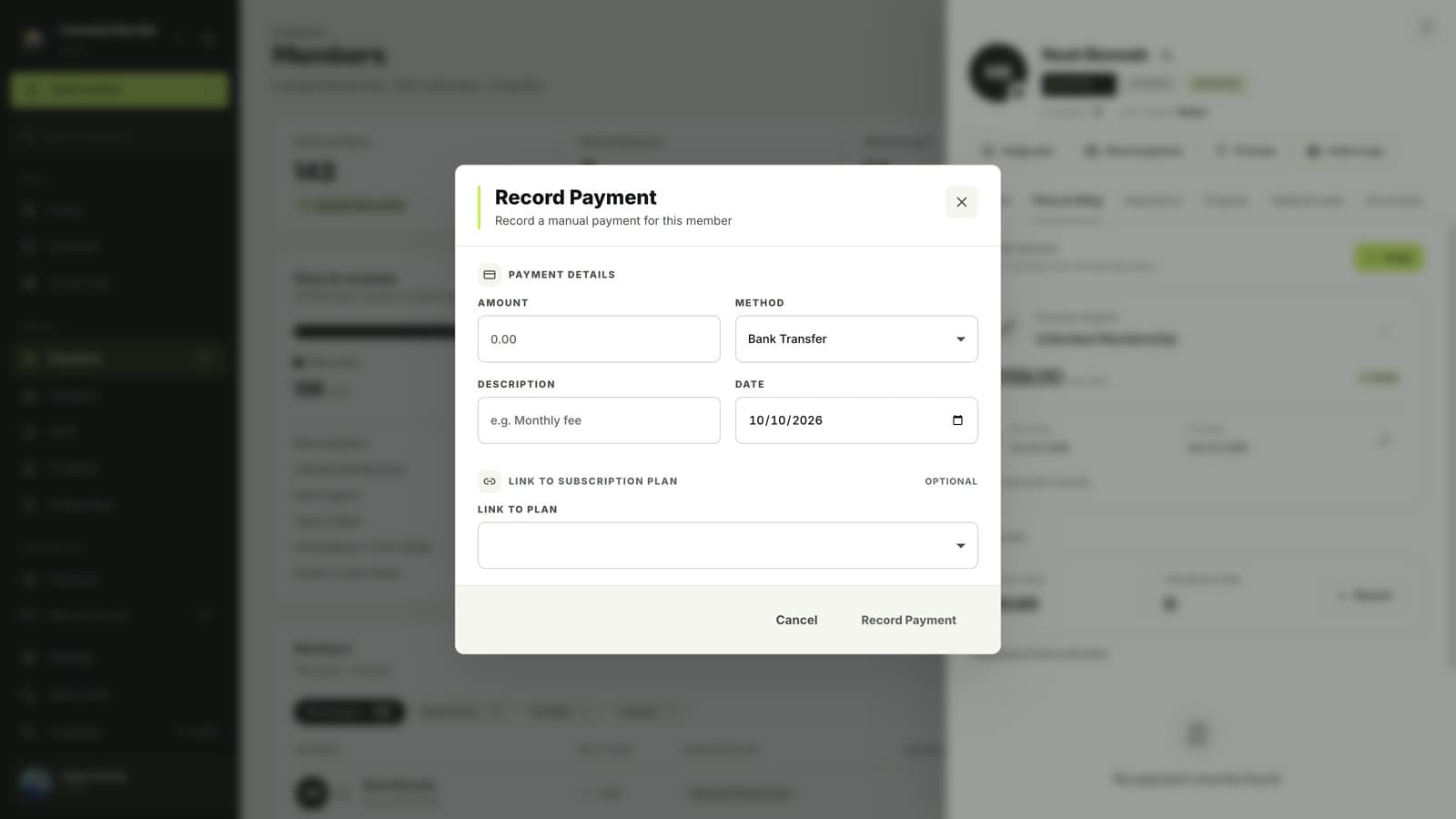
Enter the amount, method and description
Type the amount, choose the method, such as cash or bank transfer, and add a short description. The date defaults to today.
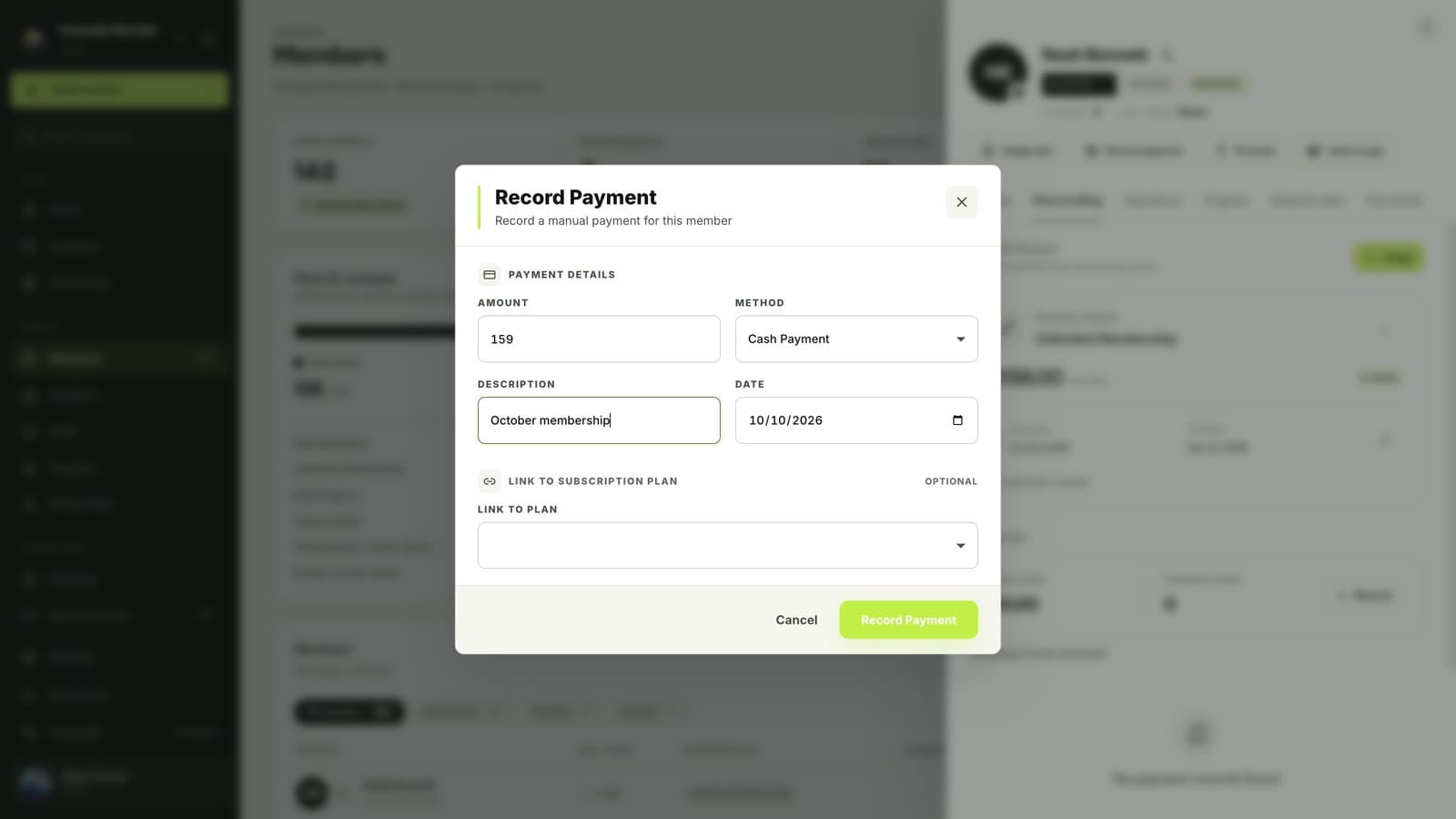
Link it to a plan (optional)
Choose one of your plans under Link to Plan. With Activate subscription on, MatSync also activates that plan for the period you set.
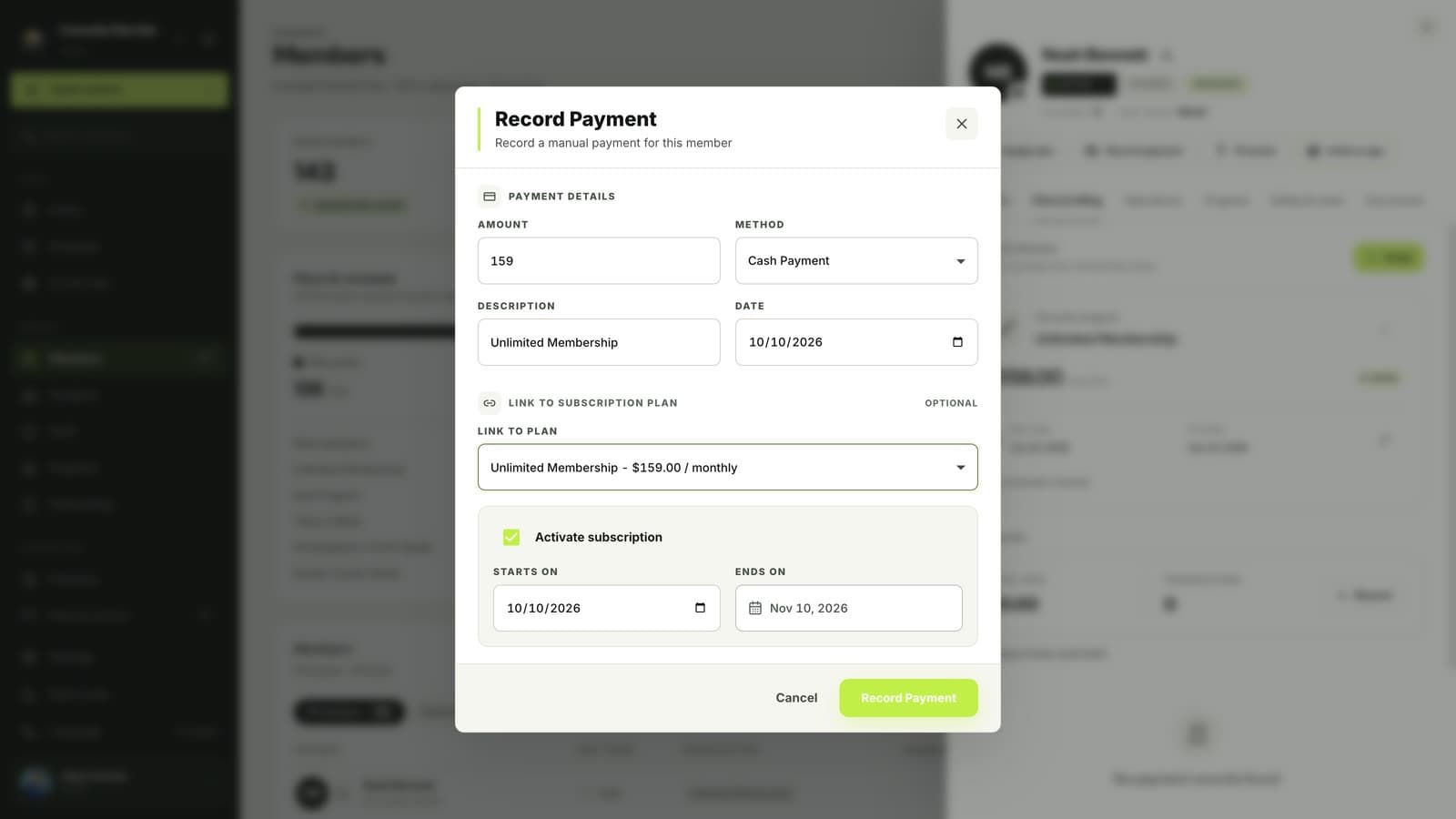
Click Record Payment
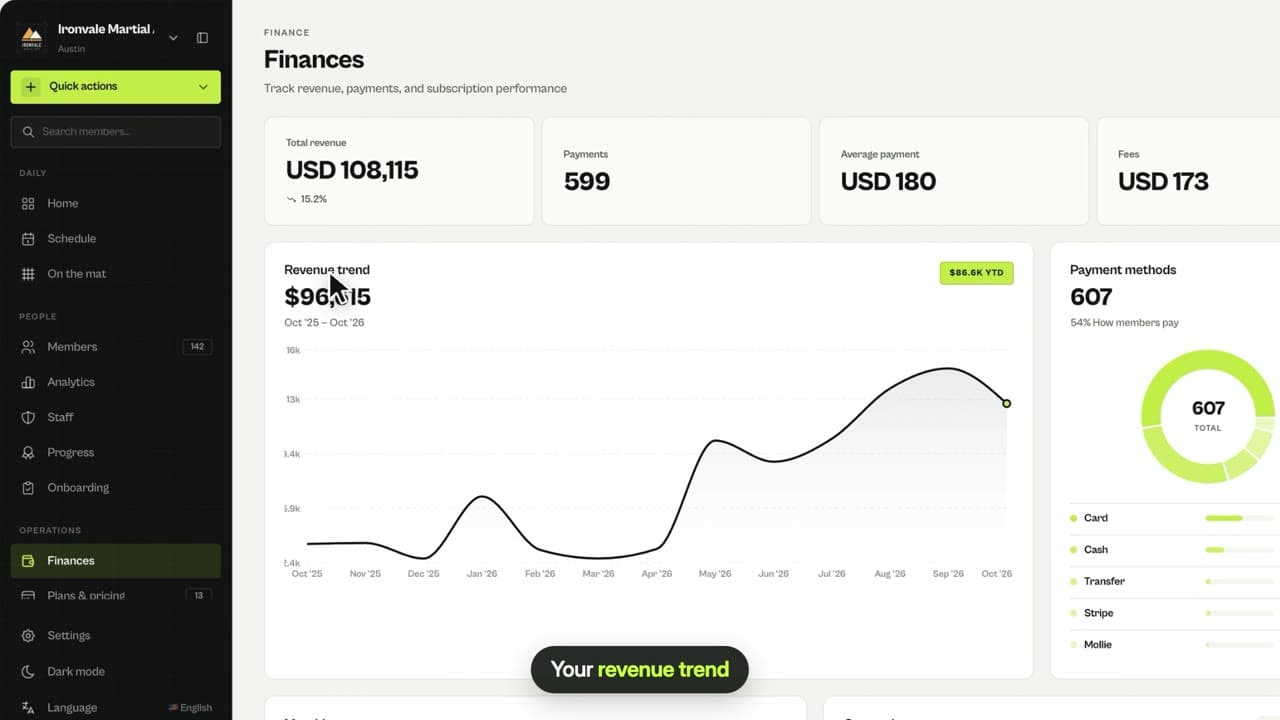
The payment appears in the member’s transaction history and in Finances.
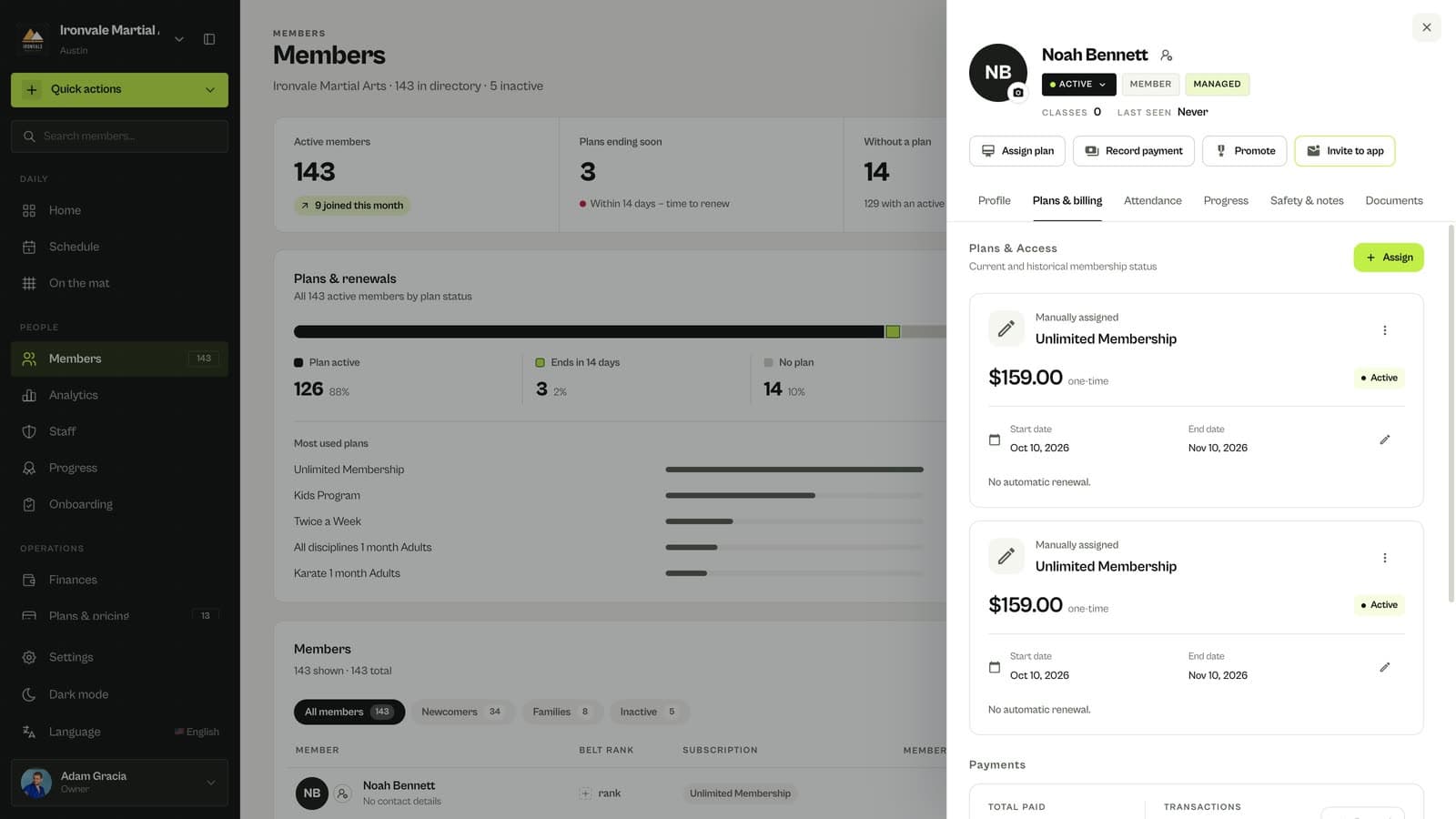
Questions
Can I edit a manual payment later?
Yes. Open the payment in the member’s transaction history and choose Edit payment to fix the amount, method, description or date.
Which payment methods can I record?
The manual methods turned on in Settings › Payments, such as cash and bank transfer, plus any custom methods you add.
Related guides
Run your academy with less admin and more time on the mat.
Start free