How to connect Stripe and accept payments in MatSync
Connect your Stripe account so members can pay in the app, and choose which manual payment methods, like cash or bank transfer, you accept.
Where to find it: Dashboard · Plans & pricing · Settings › Payments
Step by step
Open Plans & pricing
The Stripe Connect card at the bottom of Plans & pricing shows whether Stripe is connected and how many plans are synced.
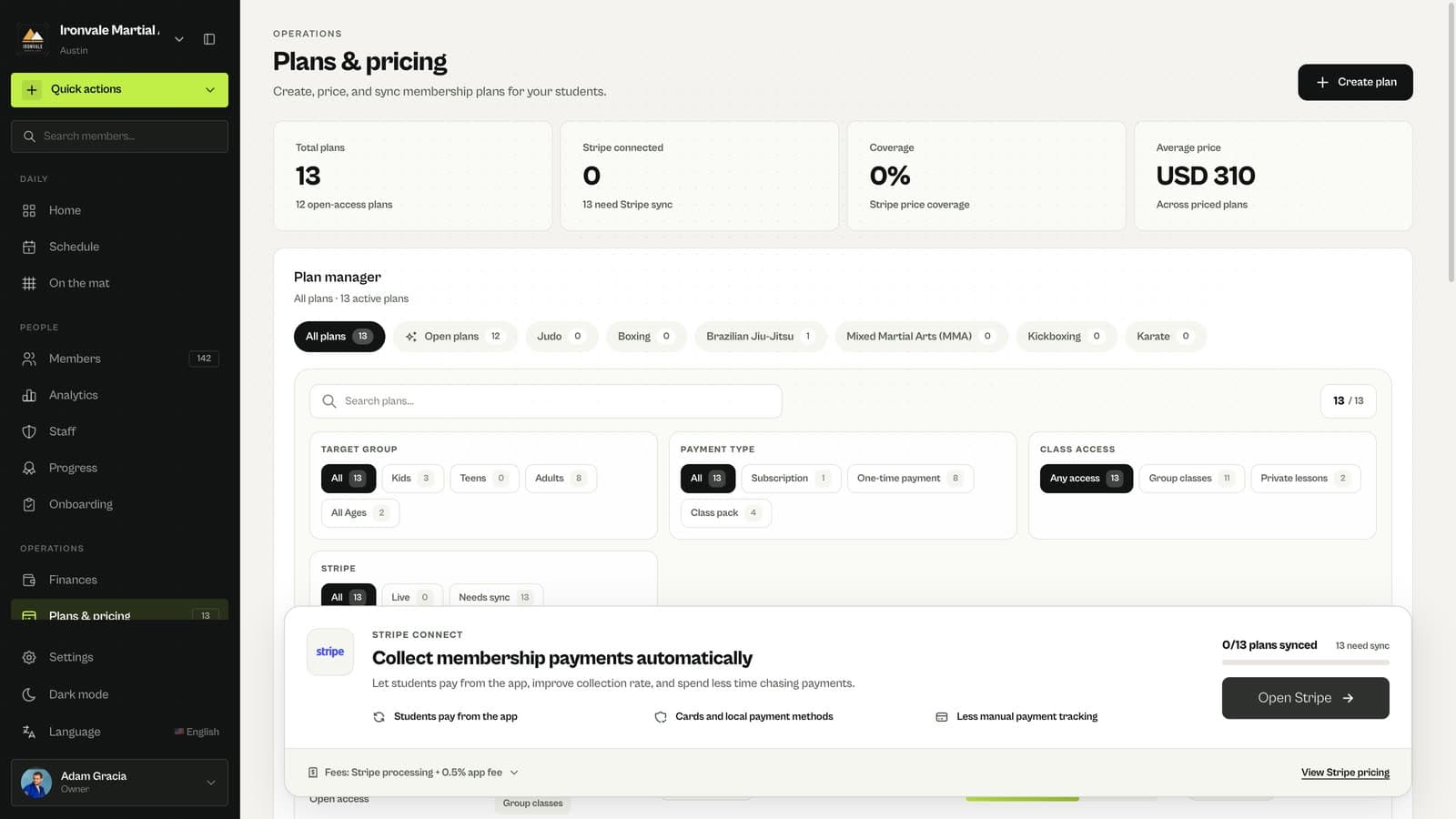
Click Open Stripe and finish onboarding
Stripe asks for your business details and the bank account that receives payouts. Payments go to your own Stripe account; MatSync never holds your money.
Sync your plans
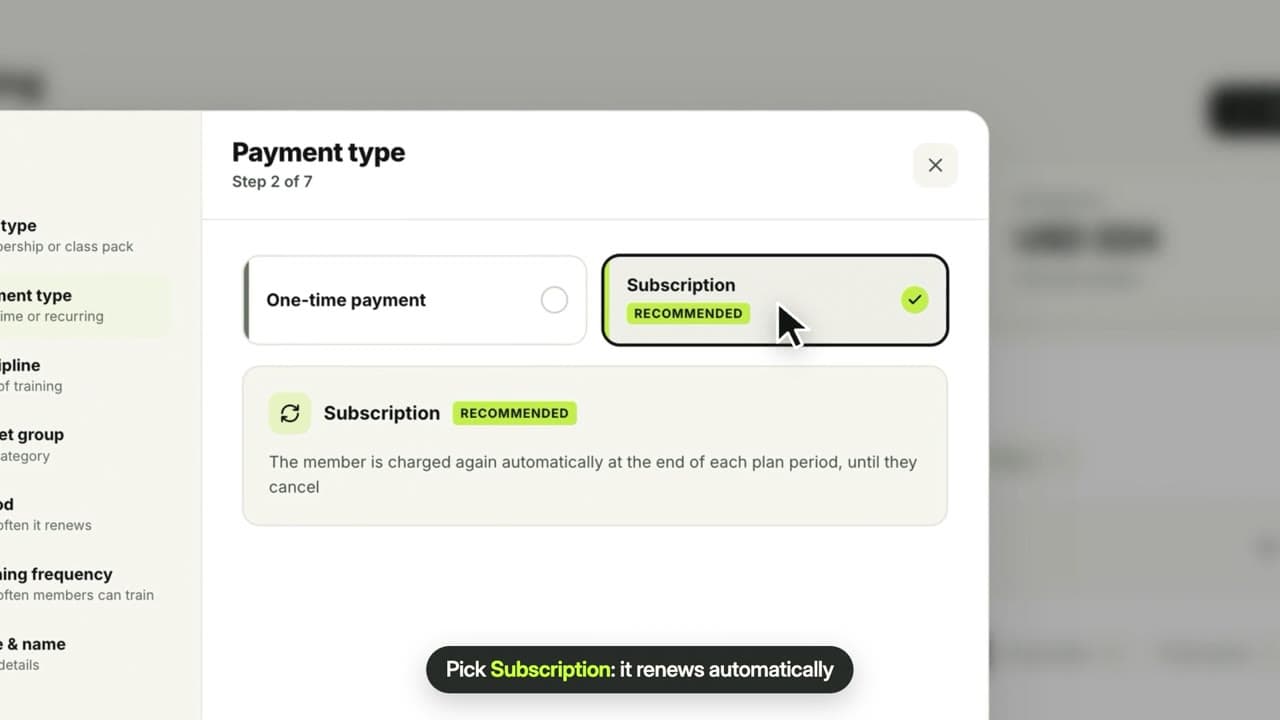
Back in Plans & pricing, sync each plan with Stripe so members can buy it in the app, as a one-time payment or a subscription.
Choose your manual payment methods
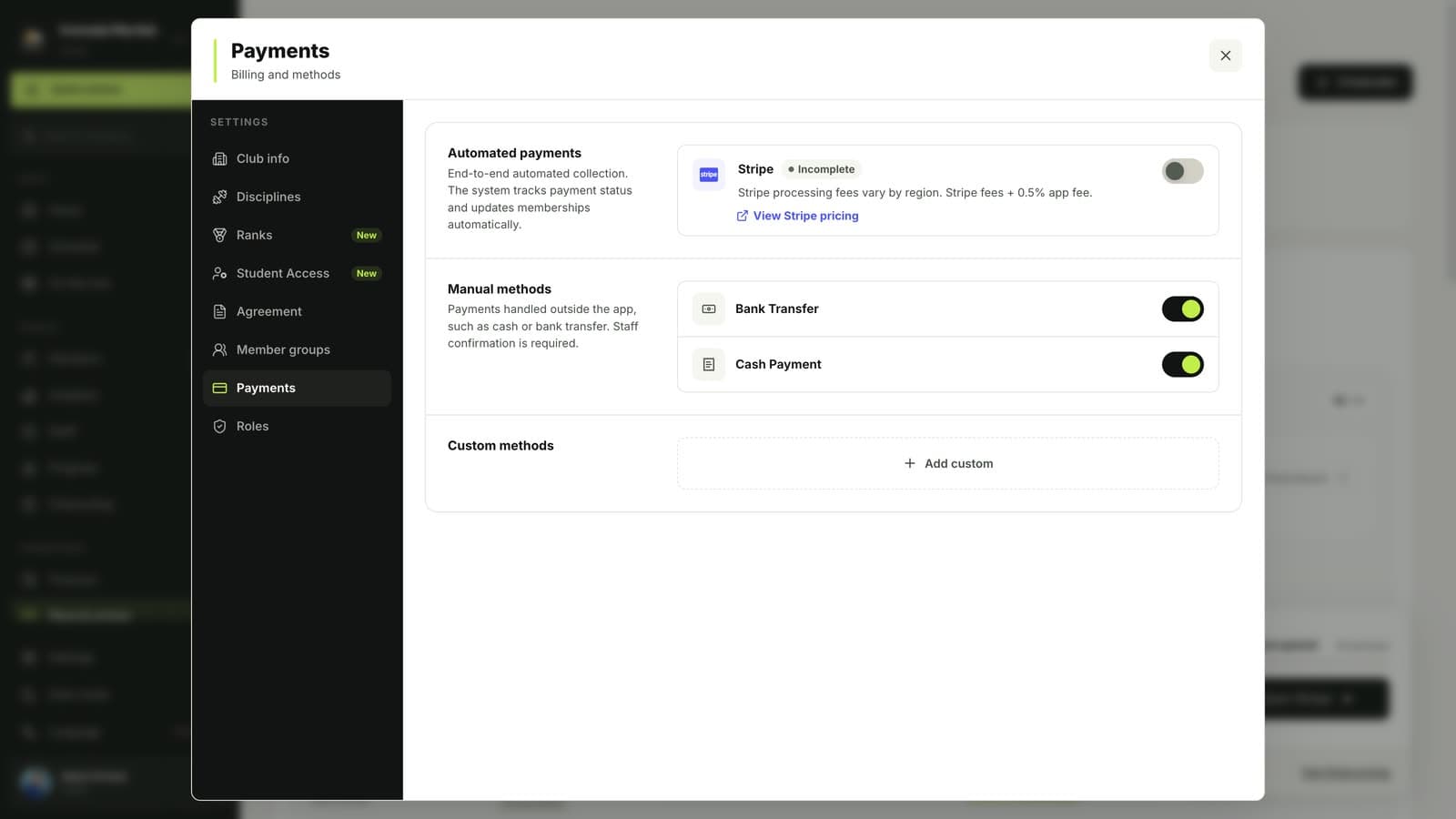
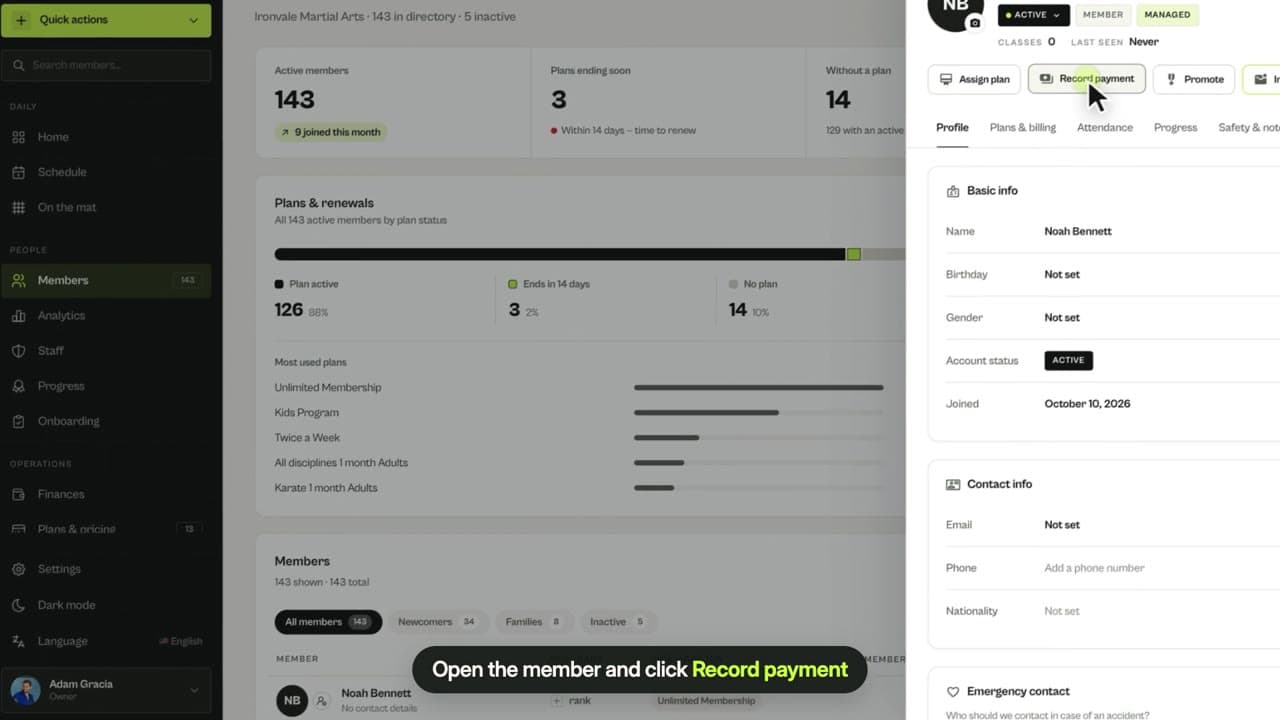
In Settings › Payments, turn on the methods you accept outside Stripe, such as cash or bank transfer, or add your own. You can record these payments by hand.
Questions
Which payment methods can members use?
Through Stripe, members can pay by card, Apple Pay or Google Pay. You can also record cash, bank transfer and your own methods manually.
Do I need Stripe to use MatSync?
No. You can manage members, classes and attendance and record payments by hand. Stripe is needed for in-app payments and recurring billing.
Related guides
Run your academy with less admin and more time on the mat.
Start free