MembersUpdated
How to assign a membership to a member
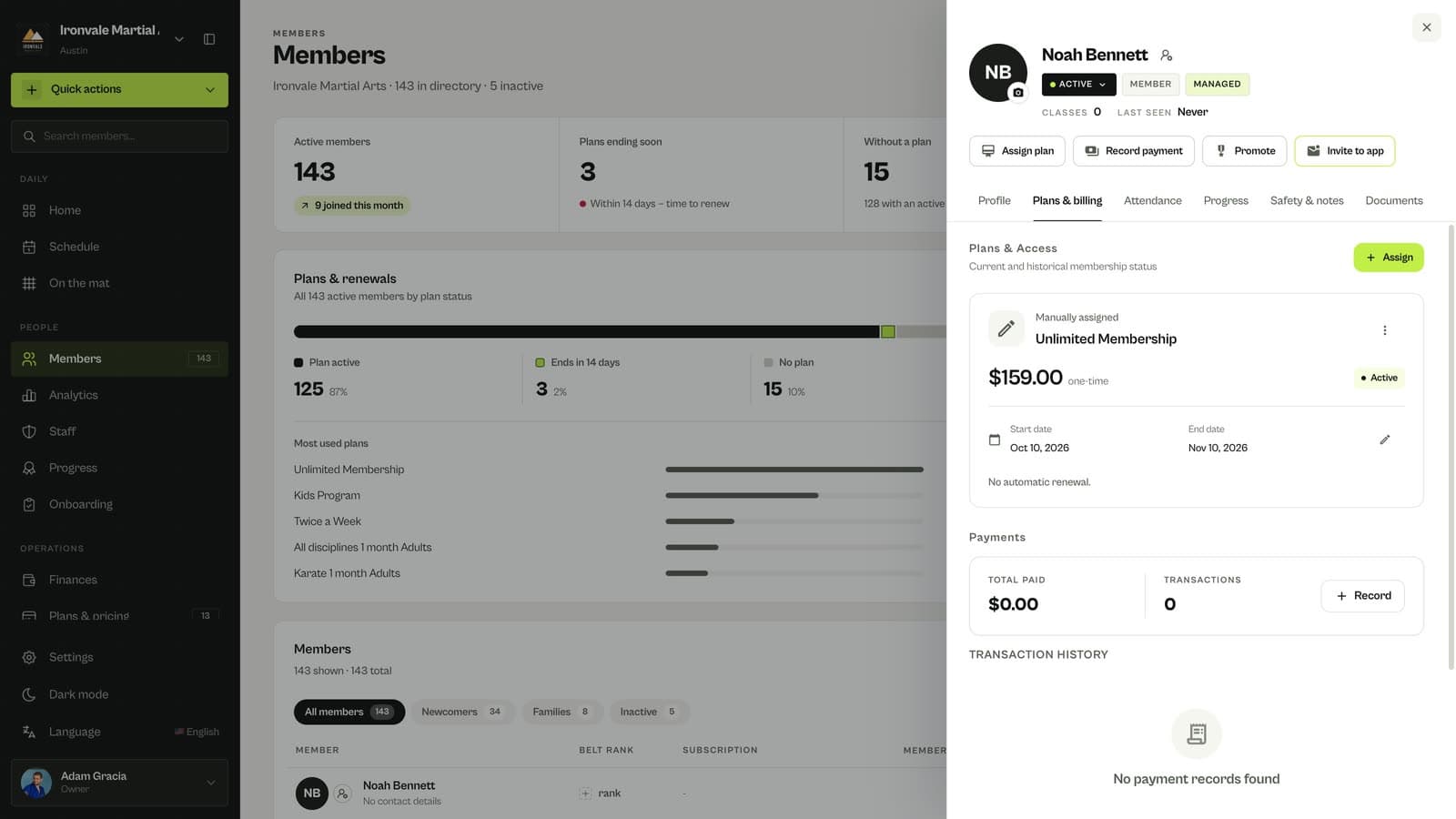
Give a member one of your plans by hand. It is active immediately with start and end dates, and marked as manually assigned.
Where to find it: Dashboard · Member profile › Assign plan
Step by step
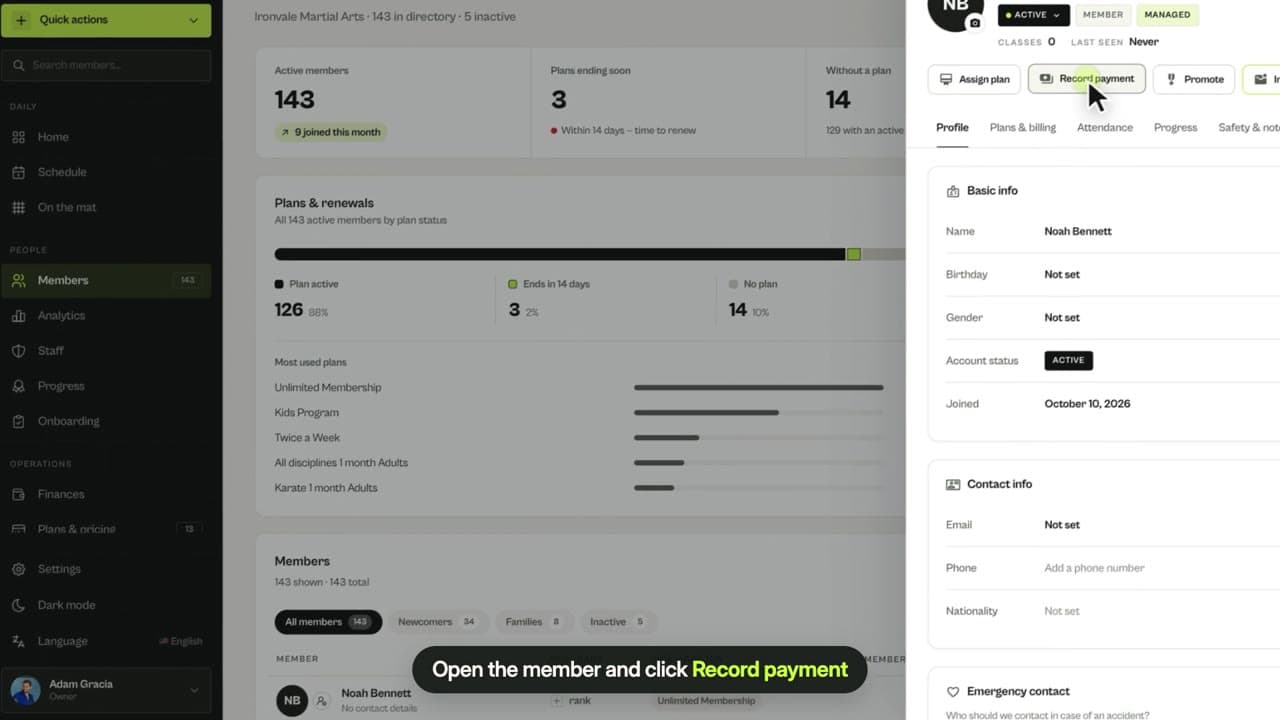
Open the member and click Assign plan
Open the member from Members, then click Assign plan at the top of their profile. Quick actions › Add membership does the same from anywhere.
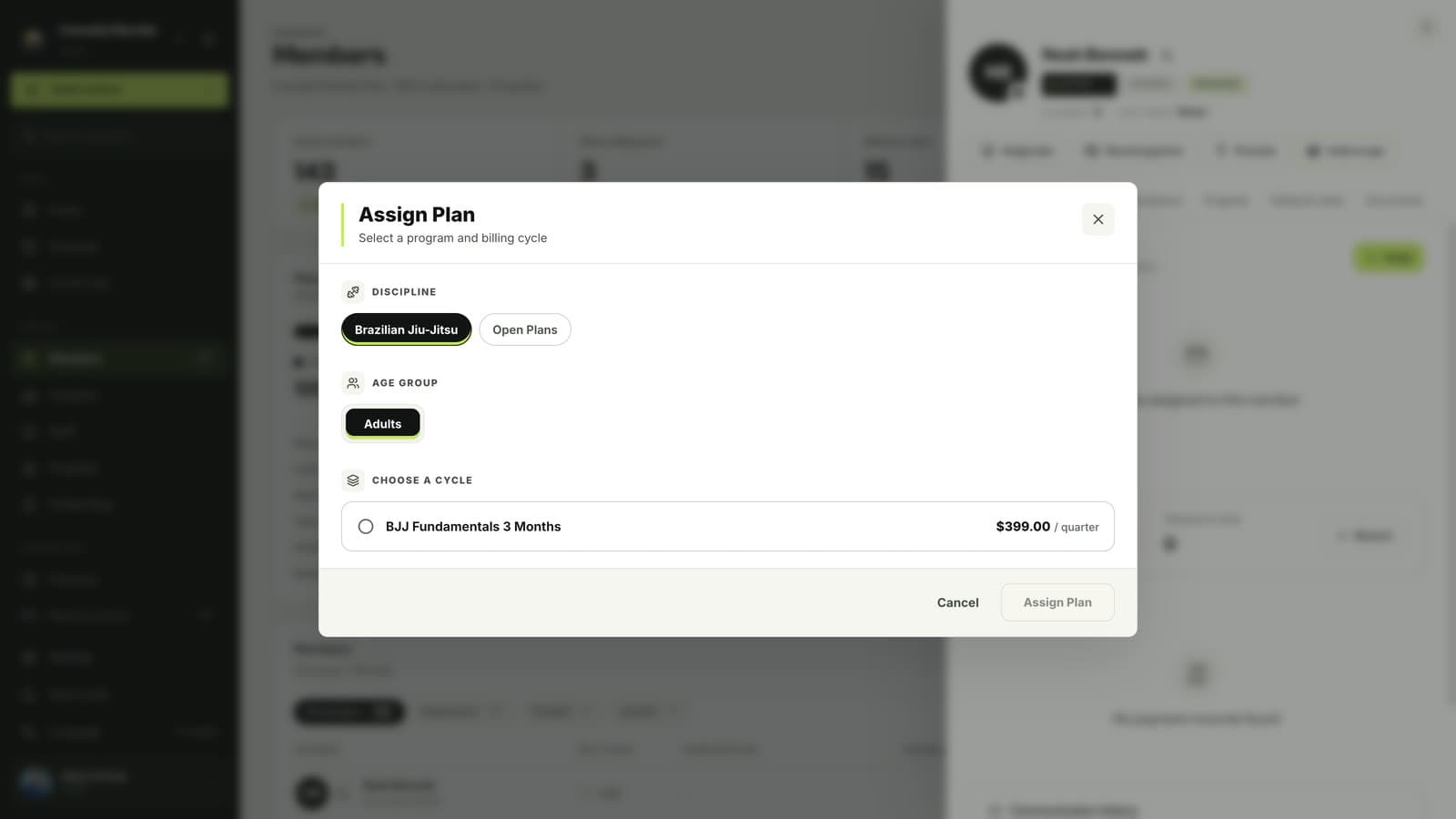
Pick the plan
Filter by discipline and age group and choose one of your plans. The prices you see are the ones you set in Plans & pricing.
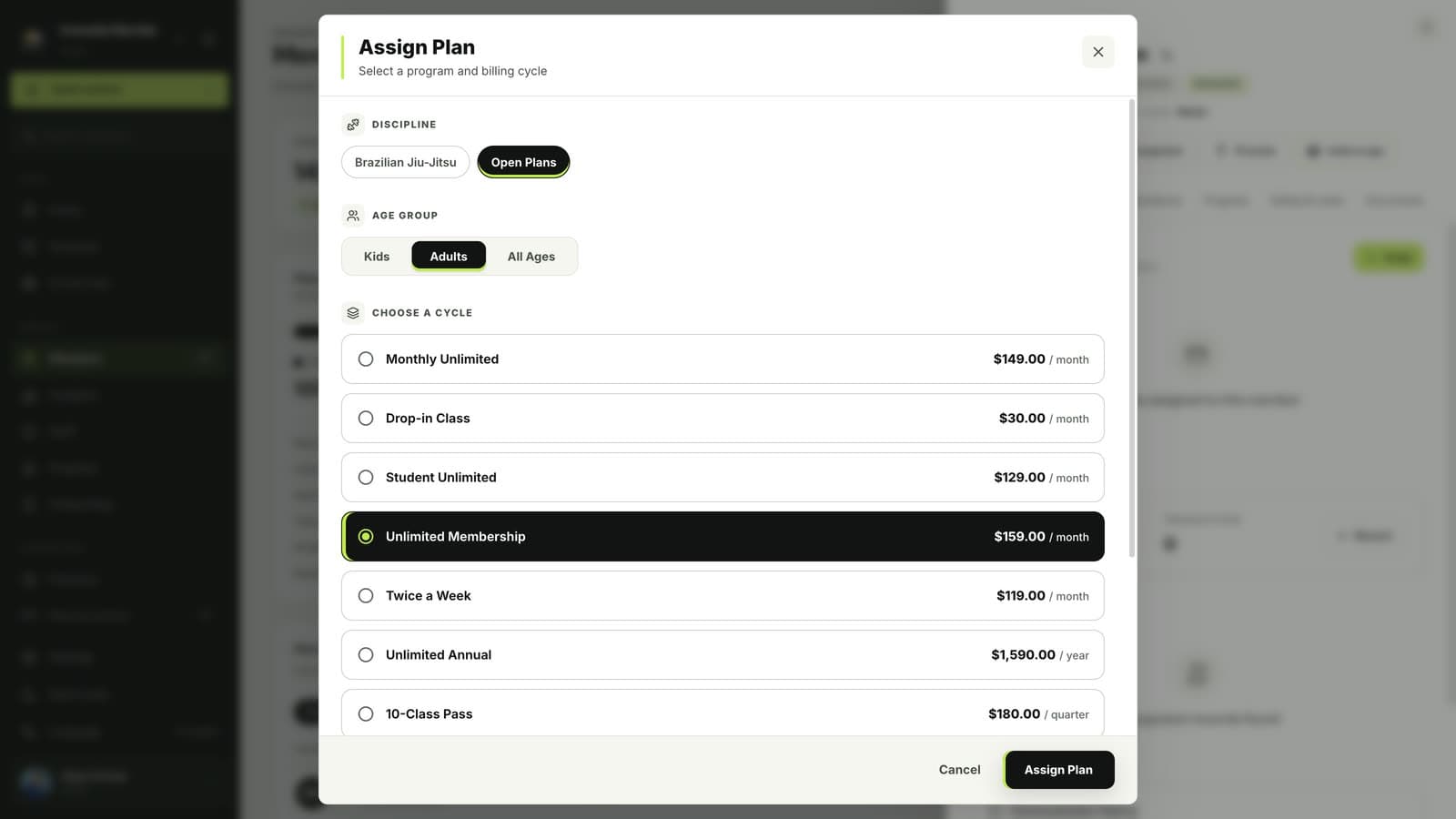
Click Assign Plan
The plan is active right away with its start and end dates, and labelled Manually assigned so you can tell it apart from plans members bought in the app.
Good to know
- Assigning a plan does not record a payment. If the member paid, record the payment too, or record the payment and activate the plan in one step.
Related guides
Run your academy with less admin and more time on the mat.
Start free