How to add a student to a class
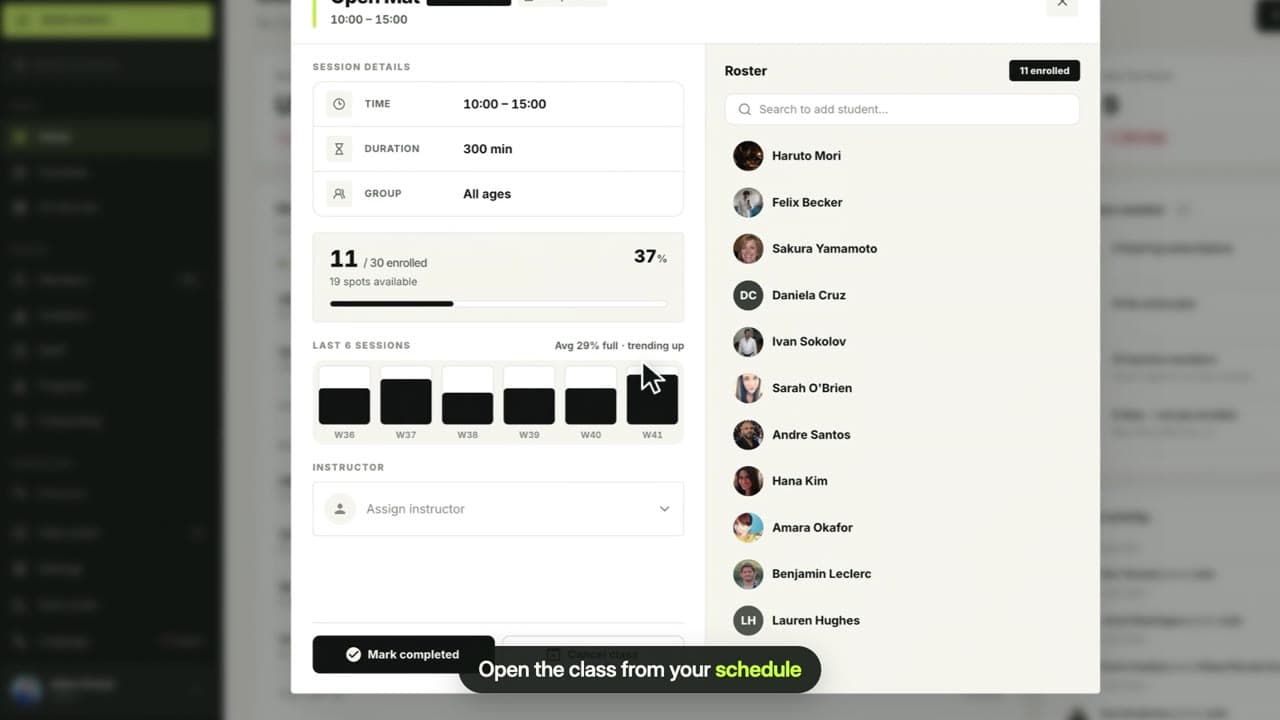
Open any class from your weekly schedule, search for a member and add them to the roster. Members can also book themselves in the app.
Where to find it: Dashboard · Home › Weekly schedule › class
Every class has a roster. Members fill it by booking in the app, and you or your coaches can add anyone else from the dashboard, for example a trial student or a child whose parent asked at the front desk.
Step by step
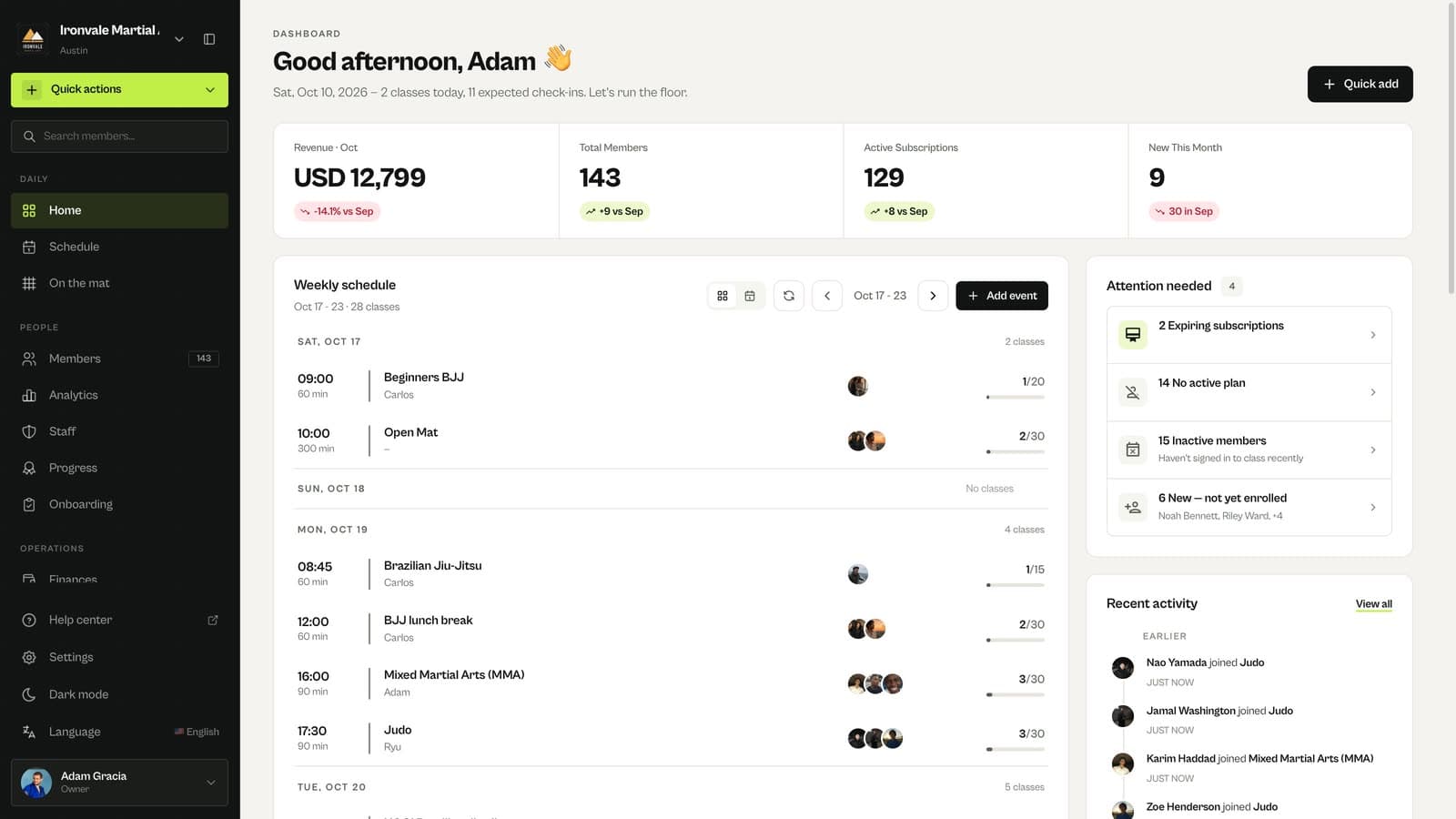
Open the class
On Home, find the class in Weekly schedule and click it. Use the arrows next to the dates to move to another week.
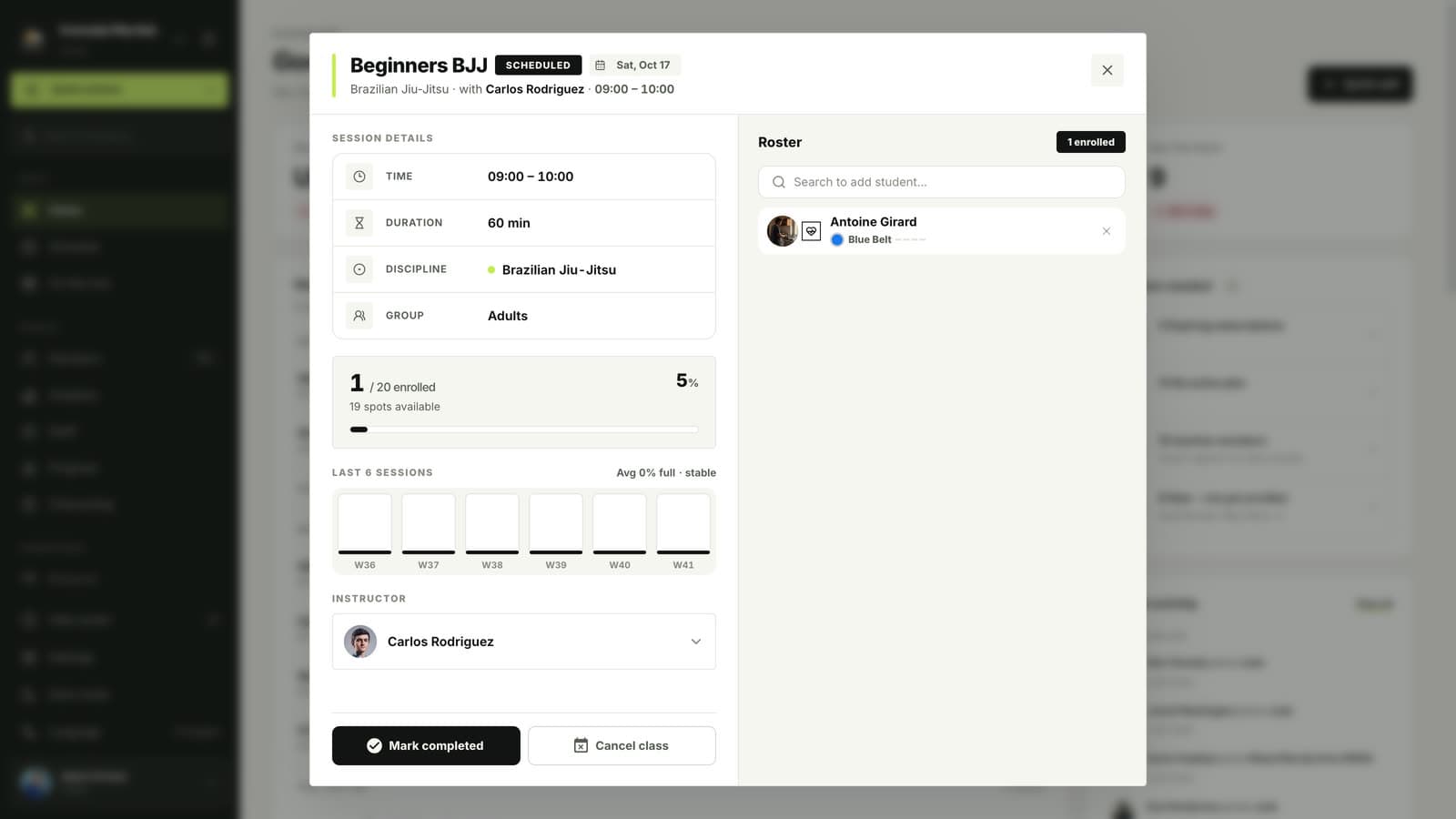
Check the roster
The right side of the class window lists everyone who has booked, with their belt. Members who booked in the app appear here straight away.
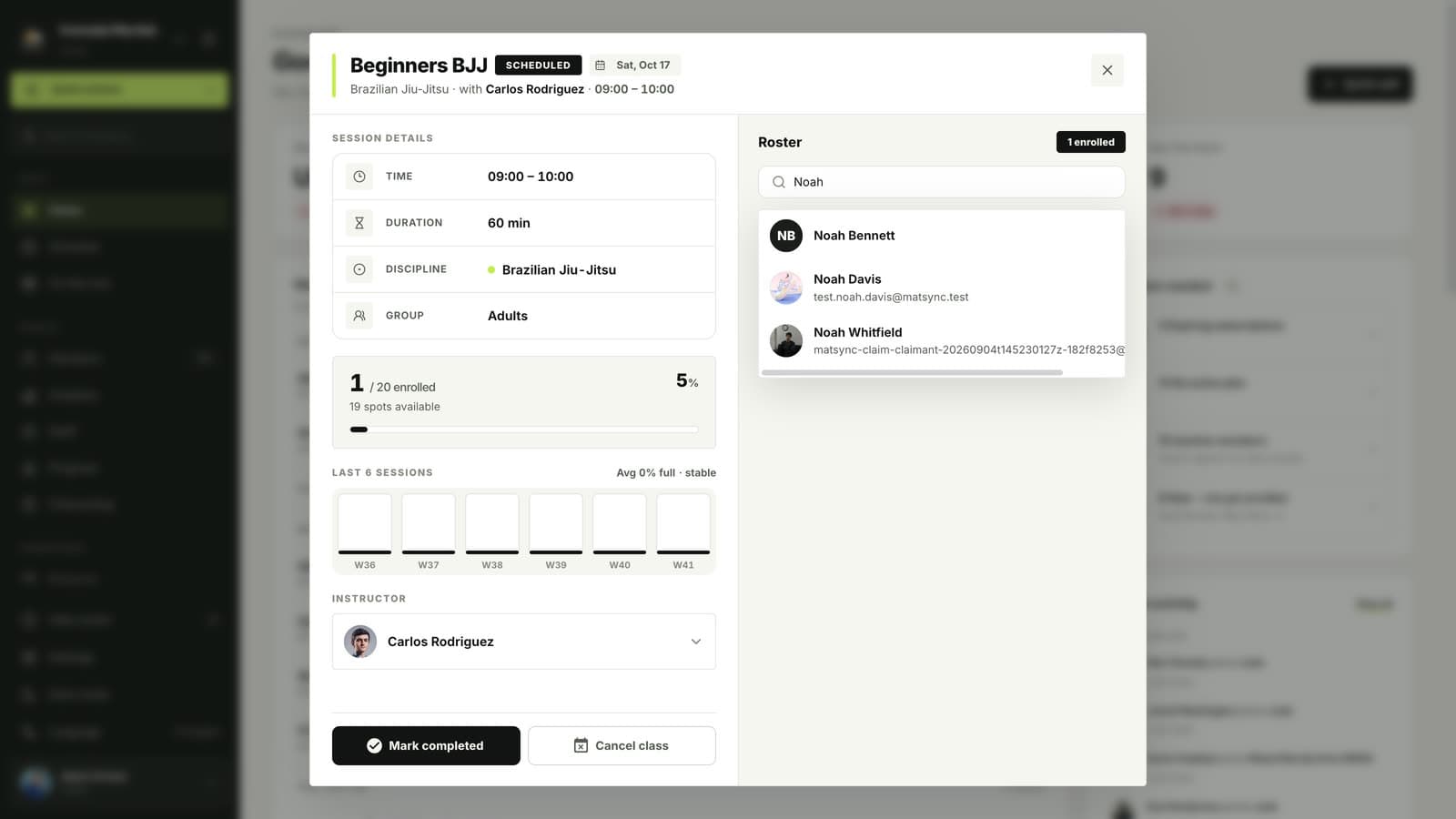
Search and add a member
Type a name in Search to add student and click the member in the list. They are added to the roster and the enrolled count goes up.
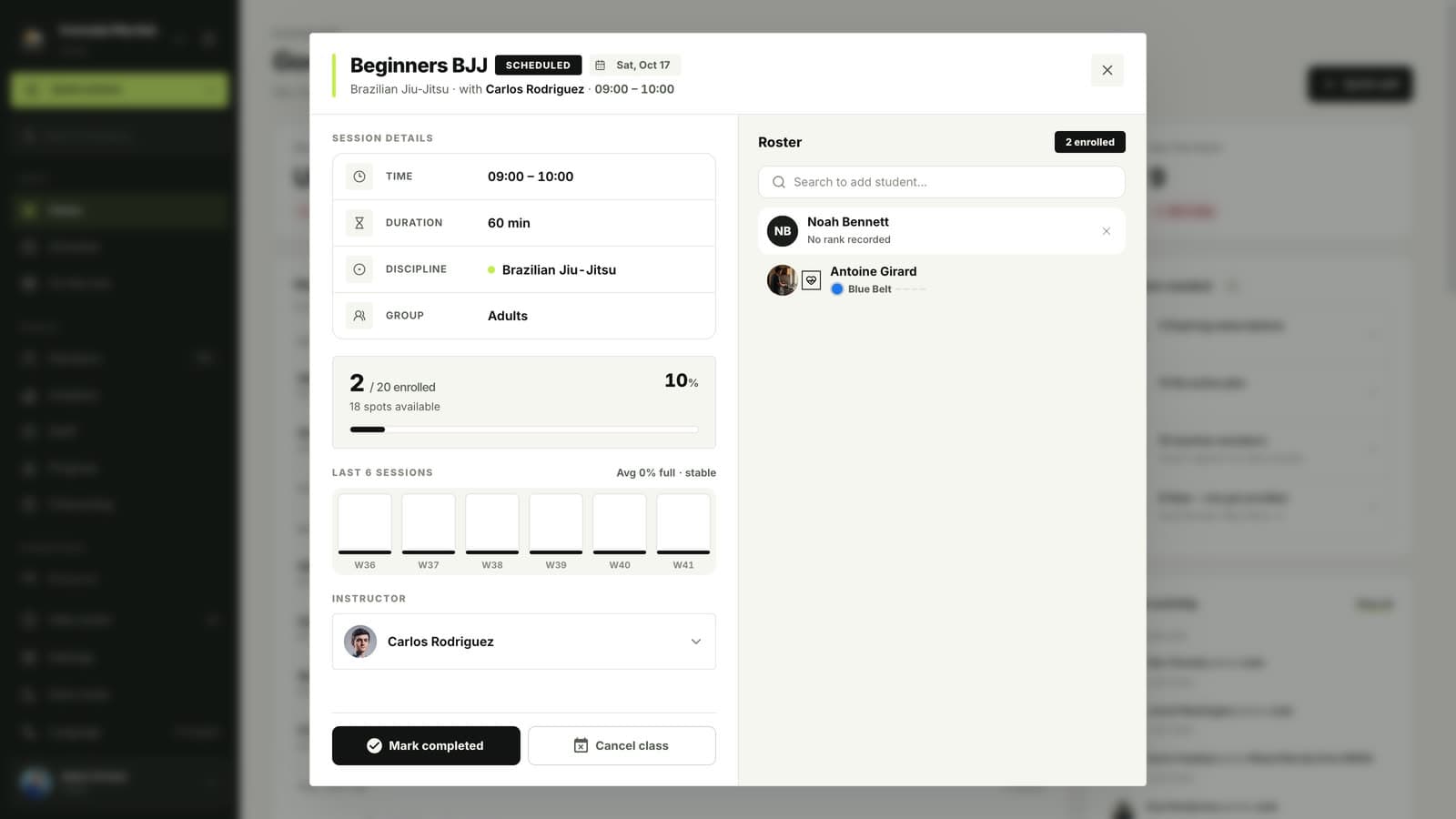
Remove someone if needed
Hover over a name in the roster and click the cross to take them off the class.
Good to know
- Club-managed members without the app can be added the same way, so families and kids without phones still appear on the roster.
- If a member has no class credits left, MatSync tells you before adding them. If they have reached the weekly class limit of their plan, staff can still add them and see a warning.
- In the app, members tap Join on a class and choose who is training. A parent can book several children from one account.
Questions
Why can a member not book a class in the app?
The most common reasons are a full class, no active plan or class credits, a reached weekly limit, or a registration form your club requires before booking. You can still add them from the dashboard.
Can coaches add students?
Yes. Owners, admins and instructors can open a class and add or remove students.
Related guides
Run your academy with less admin and more time on the mat.
Start free