How to complete, cancel or reactivate a class
Mark a class as completed when it ends, cancel a single class when you cannot run it, and reactivate it if plans change. The roster is kept.
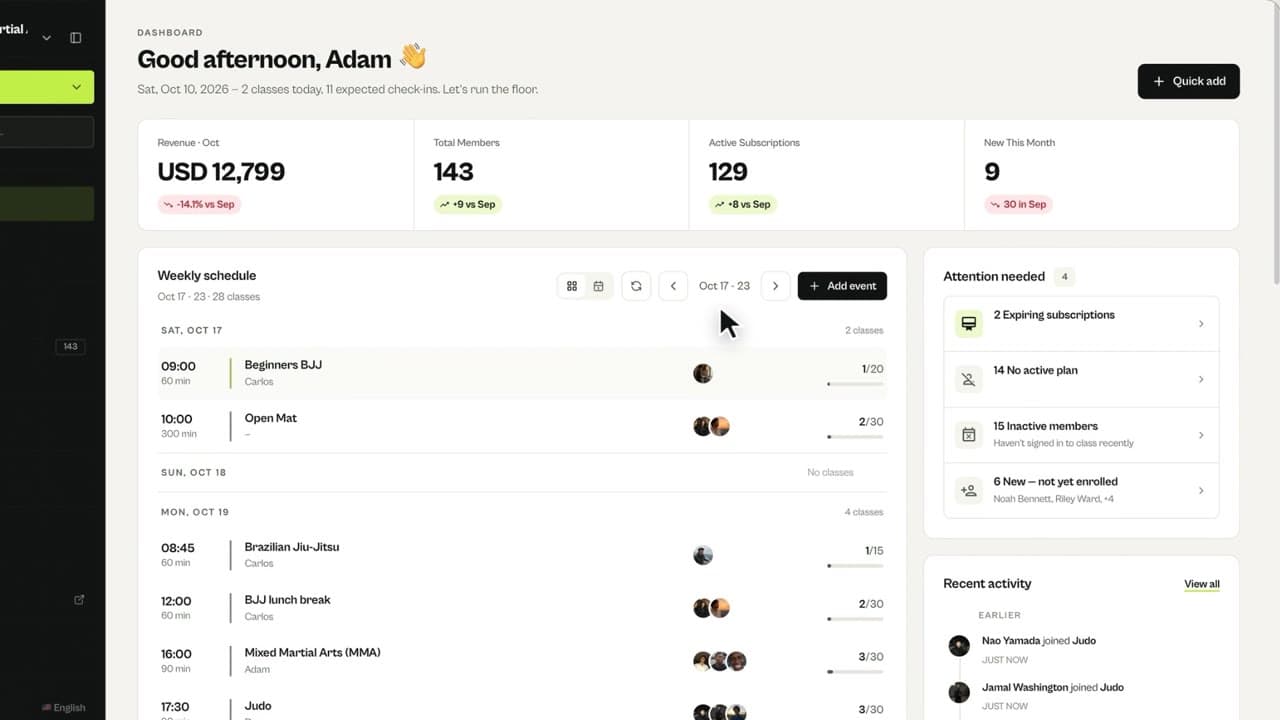
Where to find it: Dashboard · Home › Weekly schedule › class
Each date of a recurring class can be completed or cancelled on its own. Cancelling one Saturday does not touch the other Saturdays in your weekly plan.
Step by step
Open the class
On Home, click the class in Weekly schedule. The status next to its name shows Scheduled, Completed or Cancelled.
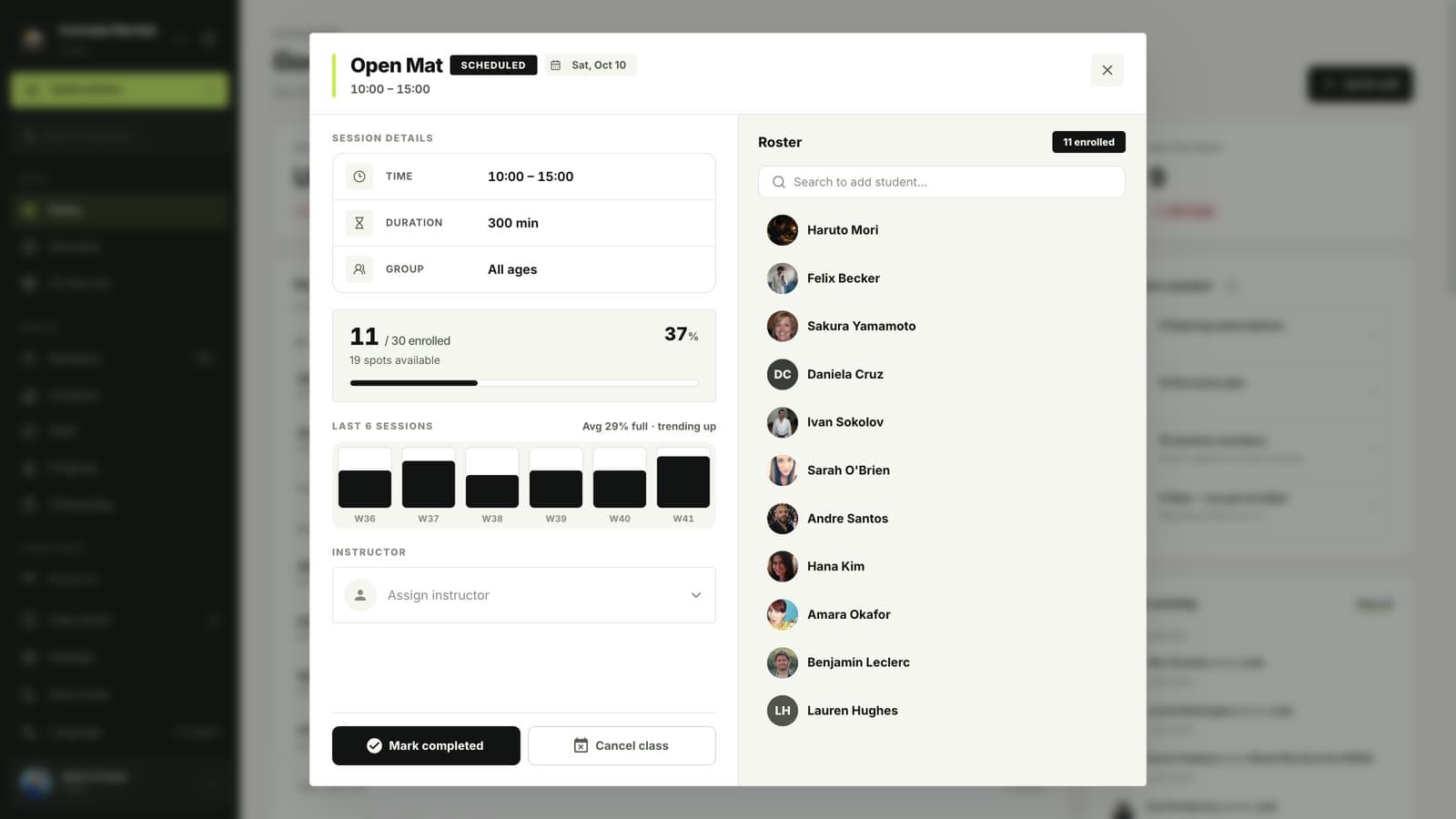
Mark it completed
When the class is over, click Mark completed. If you clicked by mistake, click Mark as incomplete to move it back.
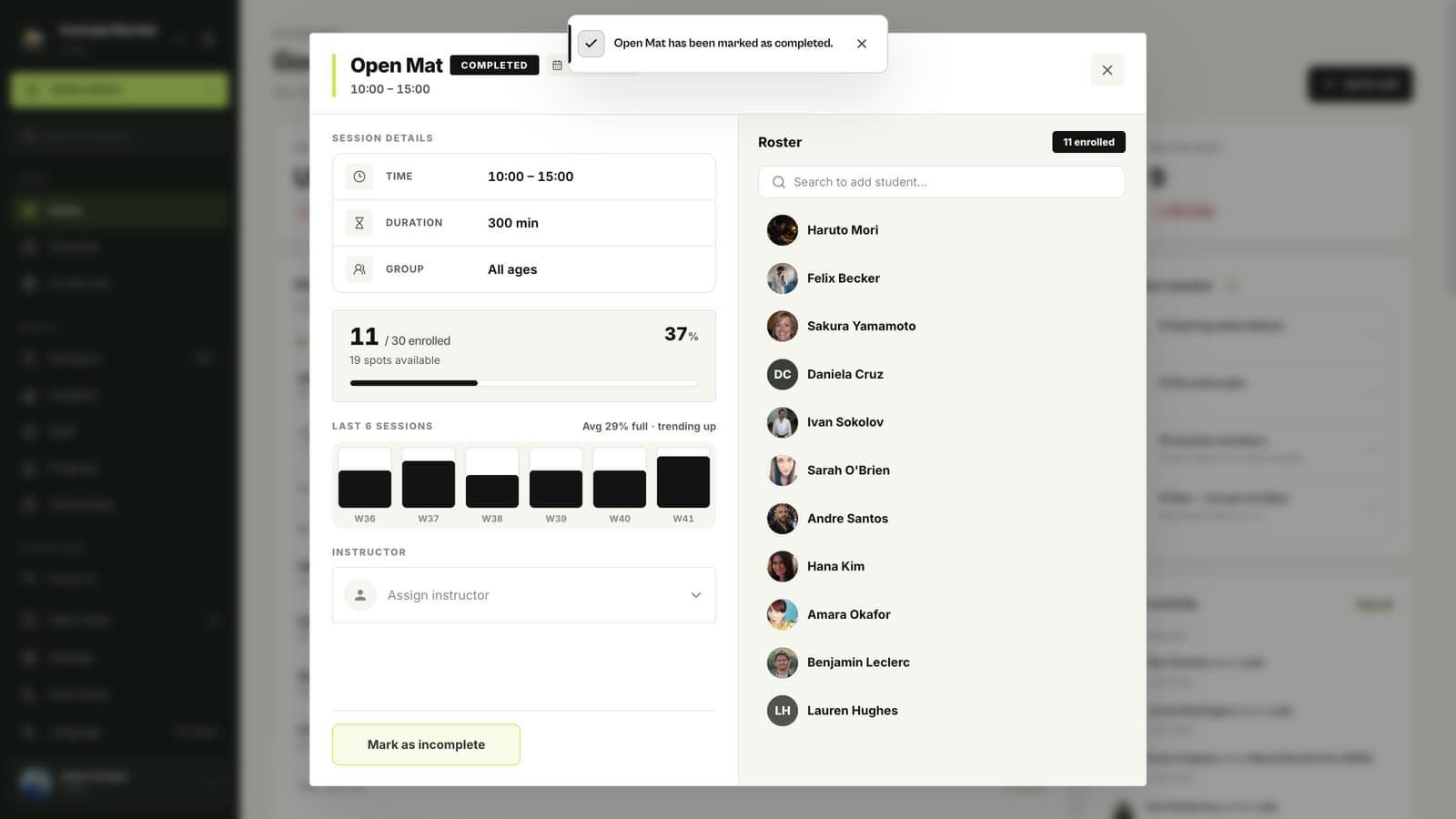
Cancel a class
Open the date you cannot run and click Cancel class. It is cancelled straight away, and members see it as cancelled in the app.
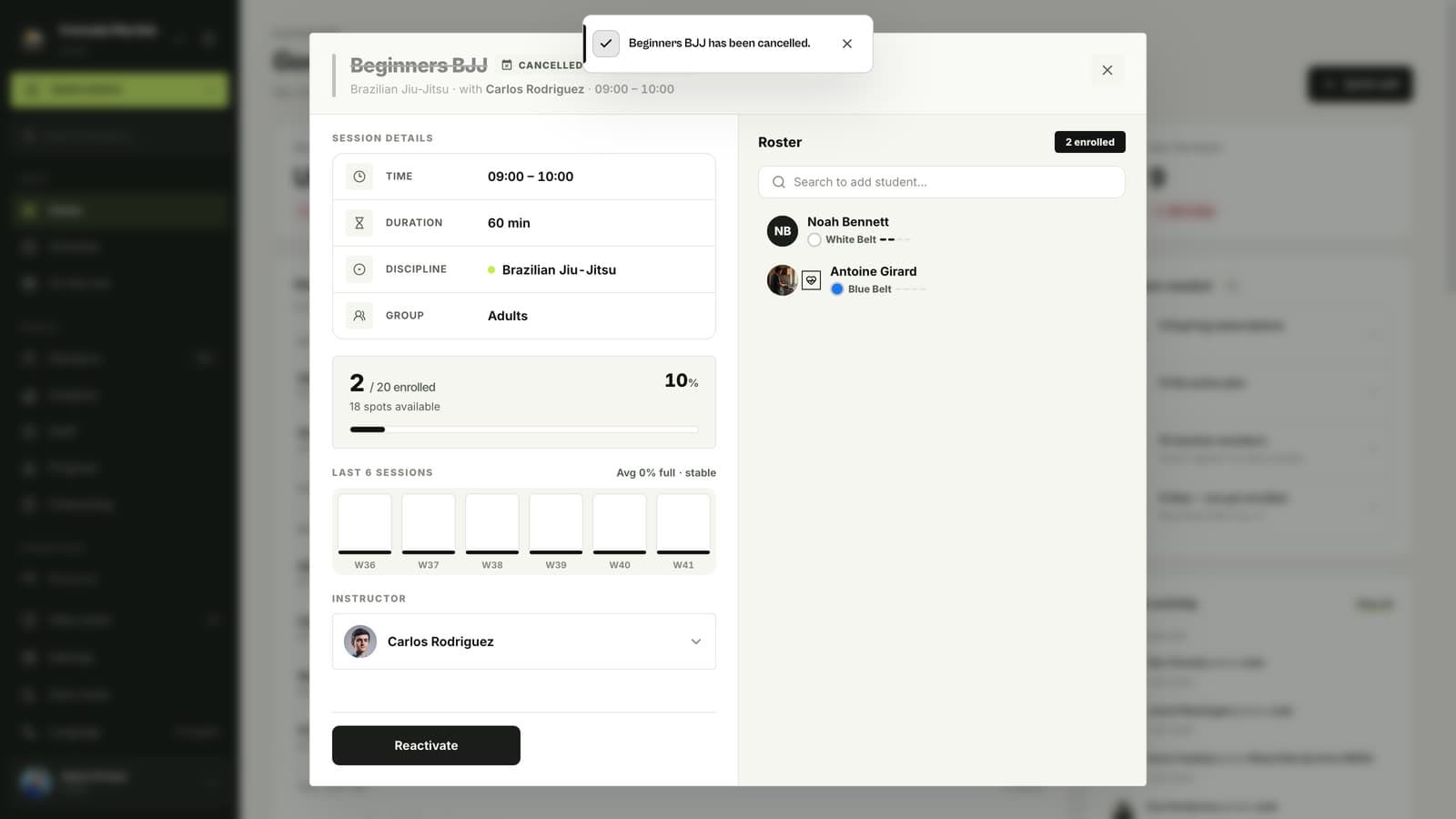
Reactivate it
Changed your mind? Open the cancelled class and click Reactivate. Everyone who had booked stays on the roster.
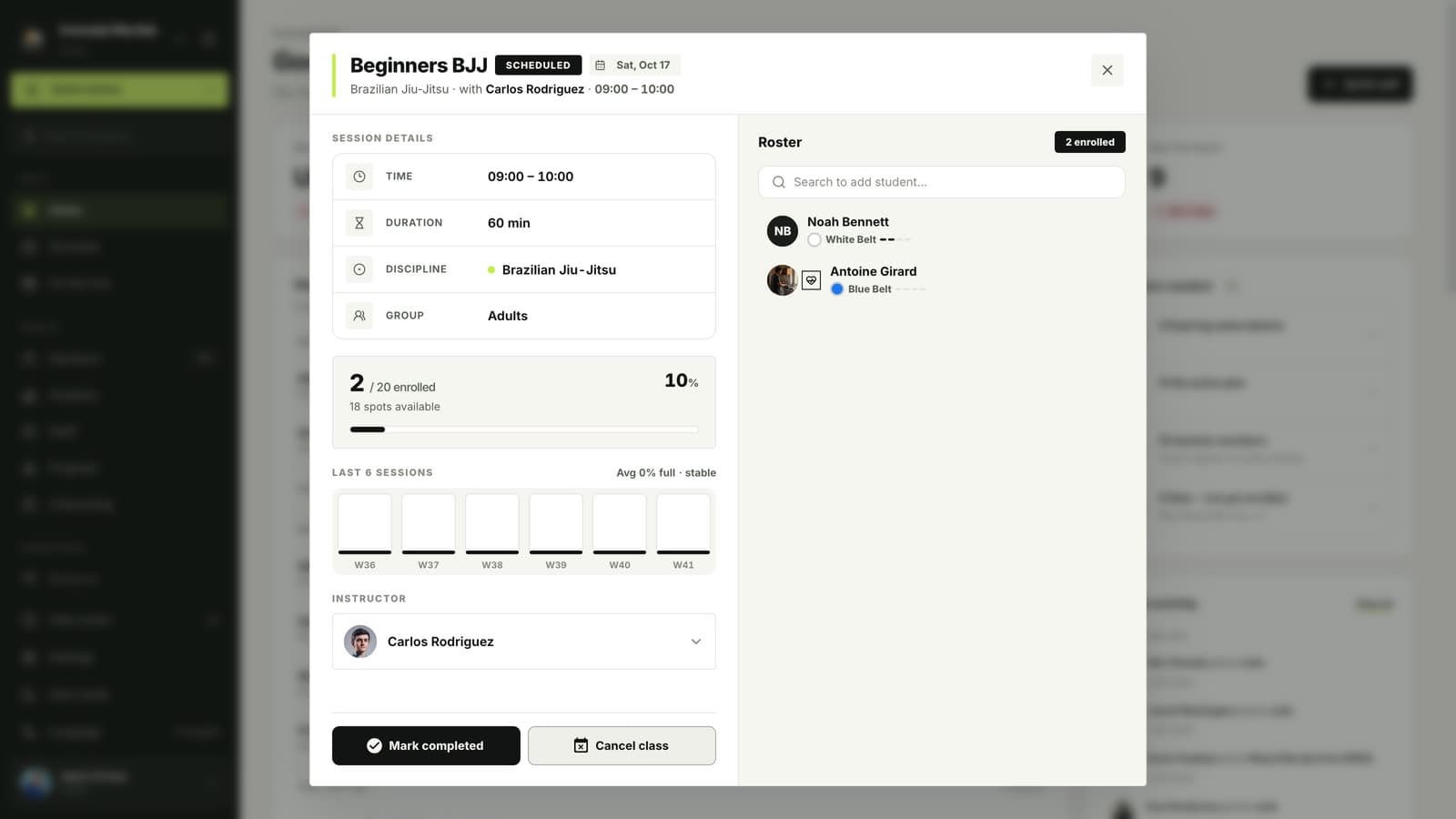
Good to know
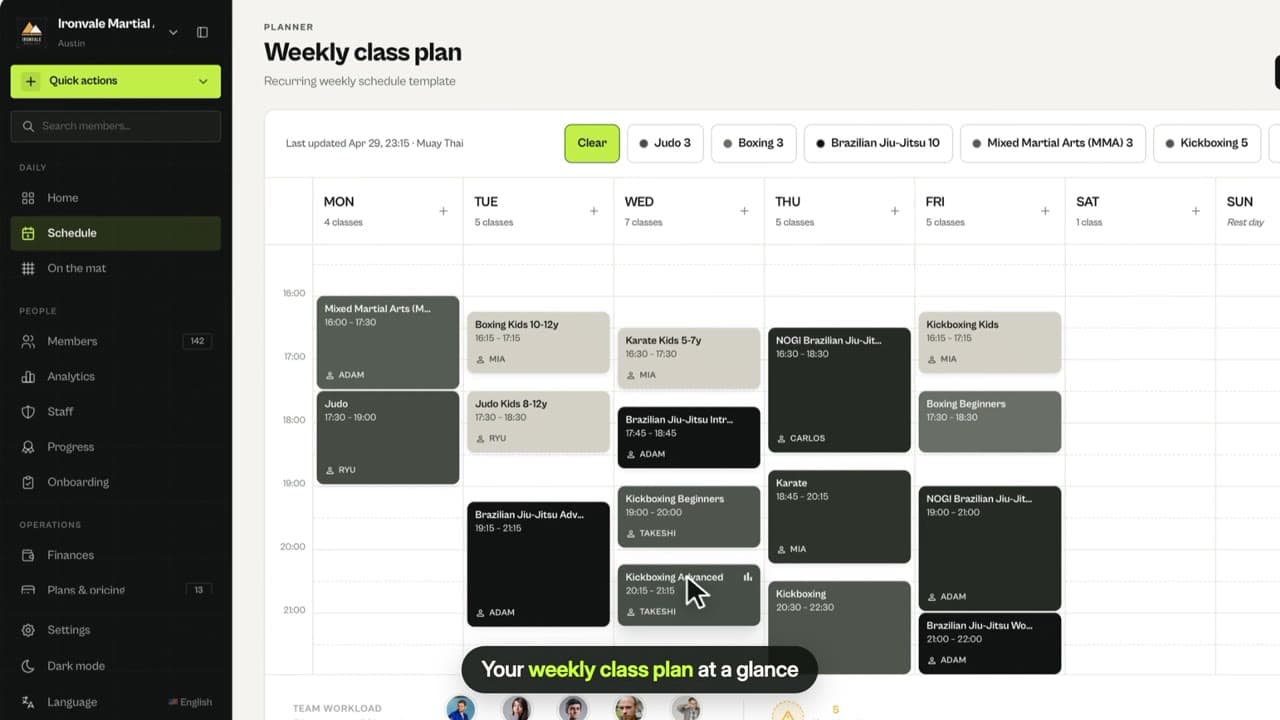
- To stop a class for good, change or delete it in Schedule instead of cancelling every date.
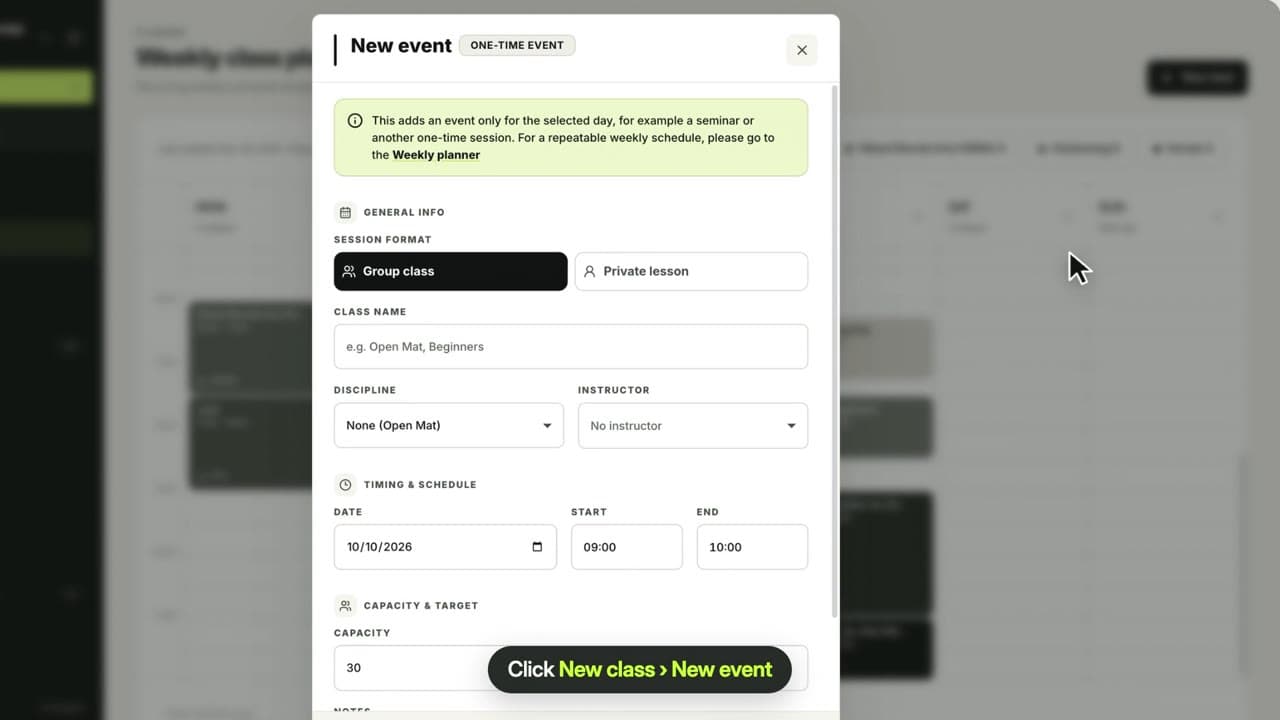
- One-off events have Edit event and Delete event instead of Cancel class.
Questions
Are members told when I cancel a class?
Members who booked see the class as cancelled in the app. Members with push notifications turned on are also notified.
What does the member app show for a completed class?
Completed classes show as Class Closed, so nobody can book them any more.
Related guides
Run your academy with less admin and more time on the mat.
Start free