MembersUpdated
How to mark a member as inactive (and active again)
Set a member to inactive when they stop training, keep their history, and switch them back any time. Booking a class reactivates them automatically.
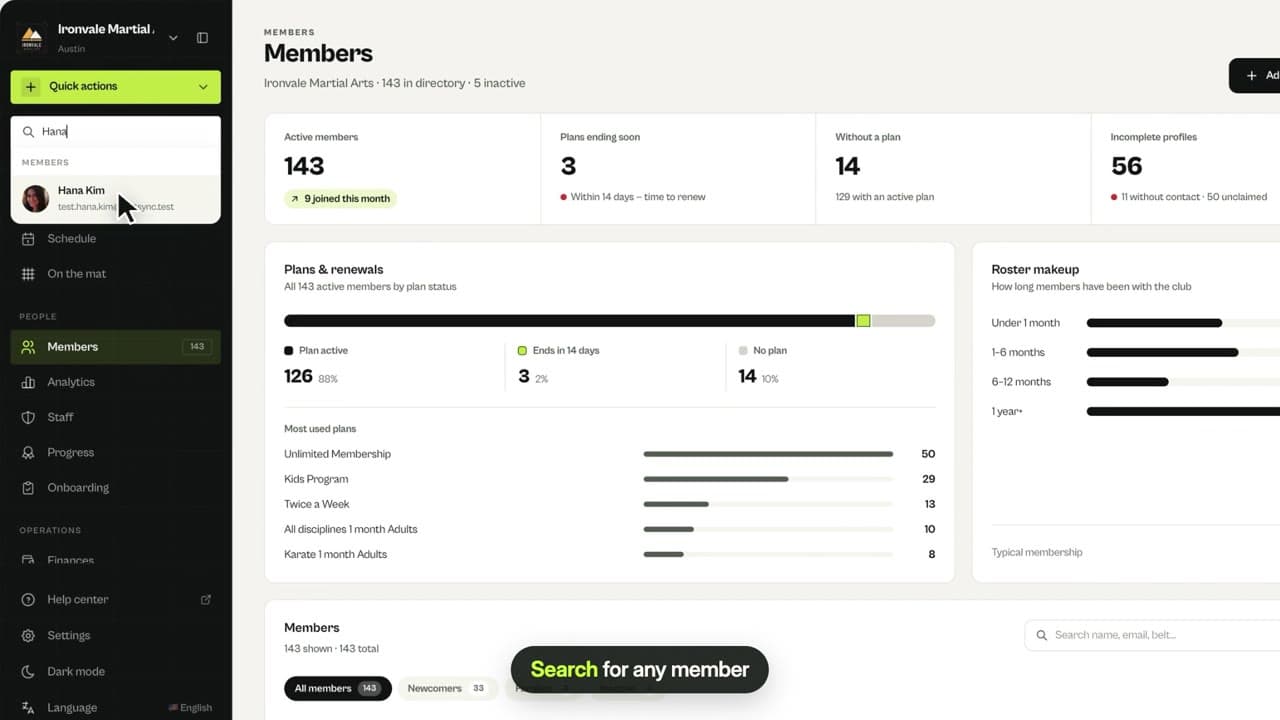
Where to find it: Dashboard · Members › member › status
Step by step
Click the status
Open the member and click the status next to their name, for example Active.
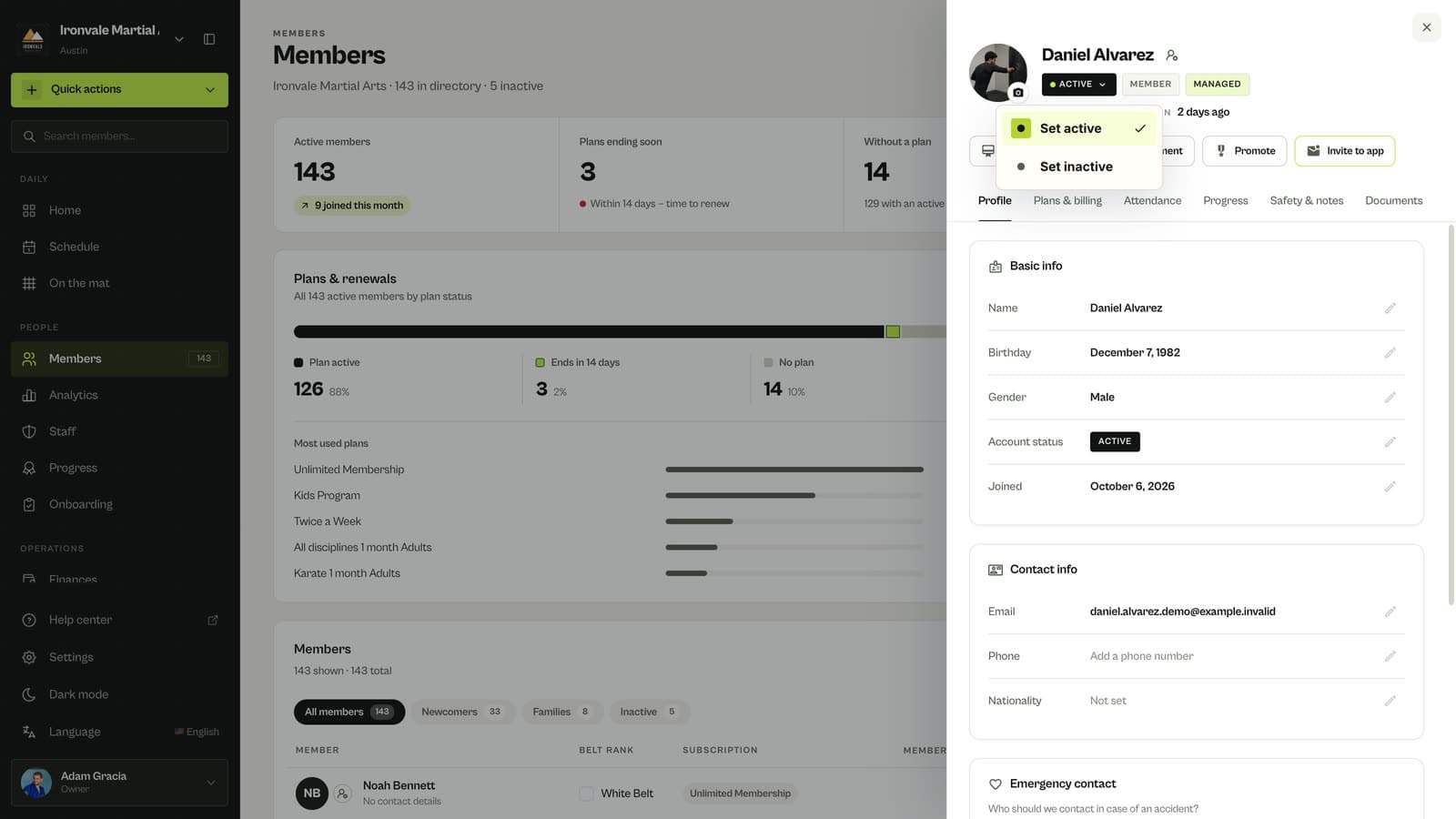
Choose Set inactive
The member is now inactive in your club. Their plans, payments, attendance and progress stay exactly as they were.
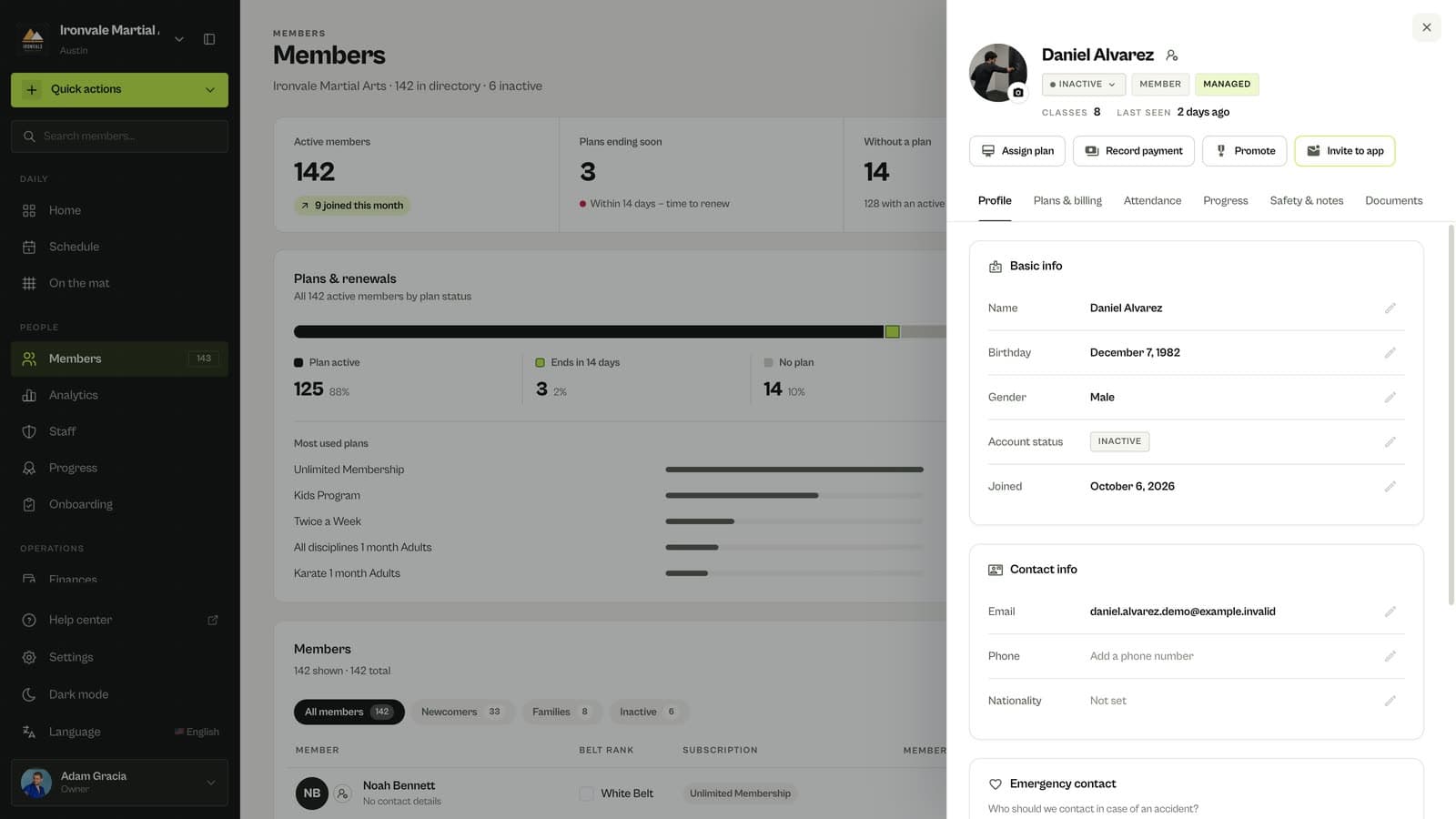
Switch back any time
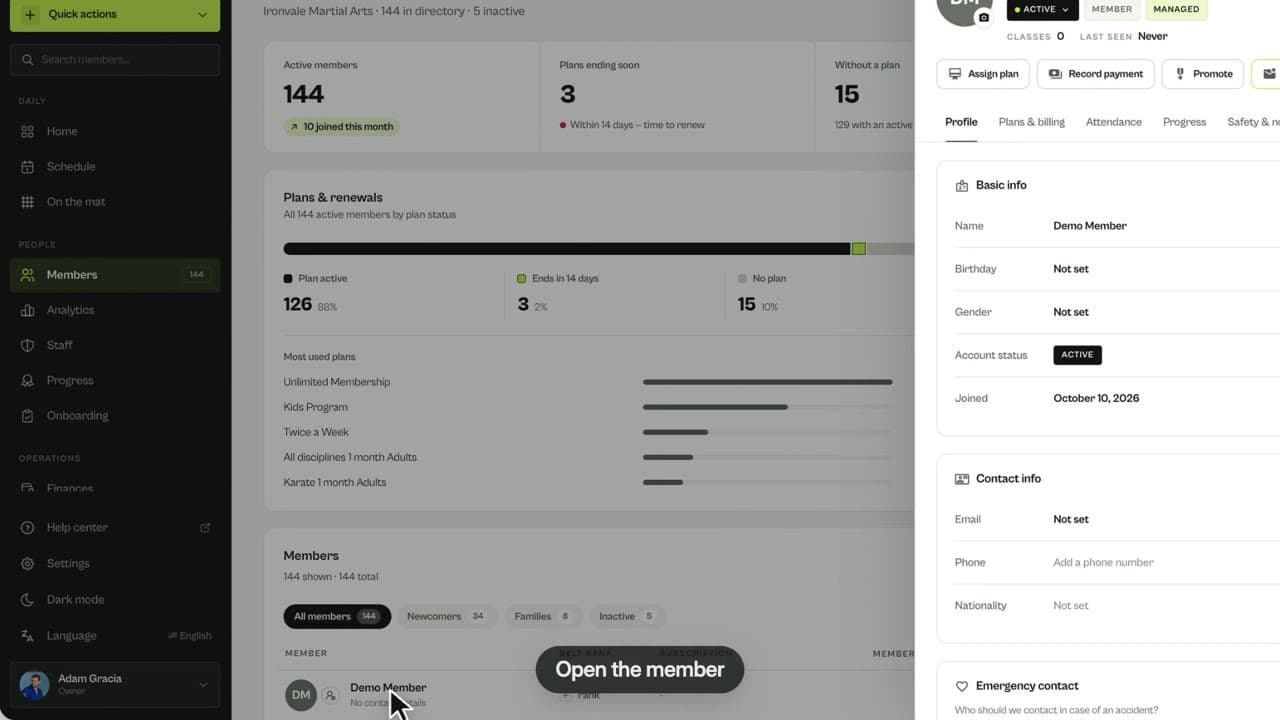
Click the status again and choose Set active. Booking a class or getting a plan also makes an inactive member active again.
Good to know
- Inactive members can still sign in, see the schedule and book classes.
- Filter the Members list by Inactive to see everyone who has stopped training.
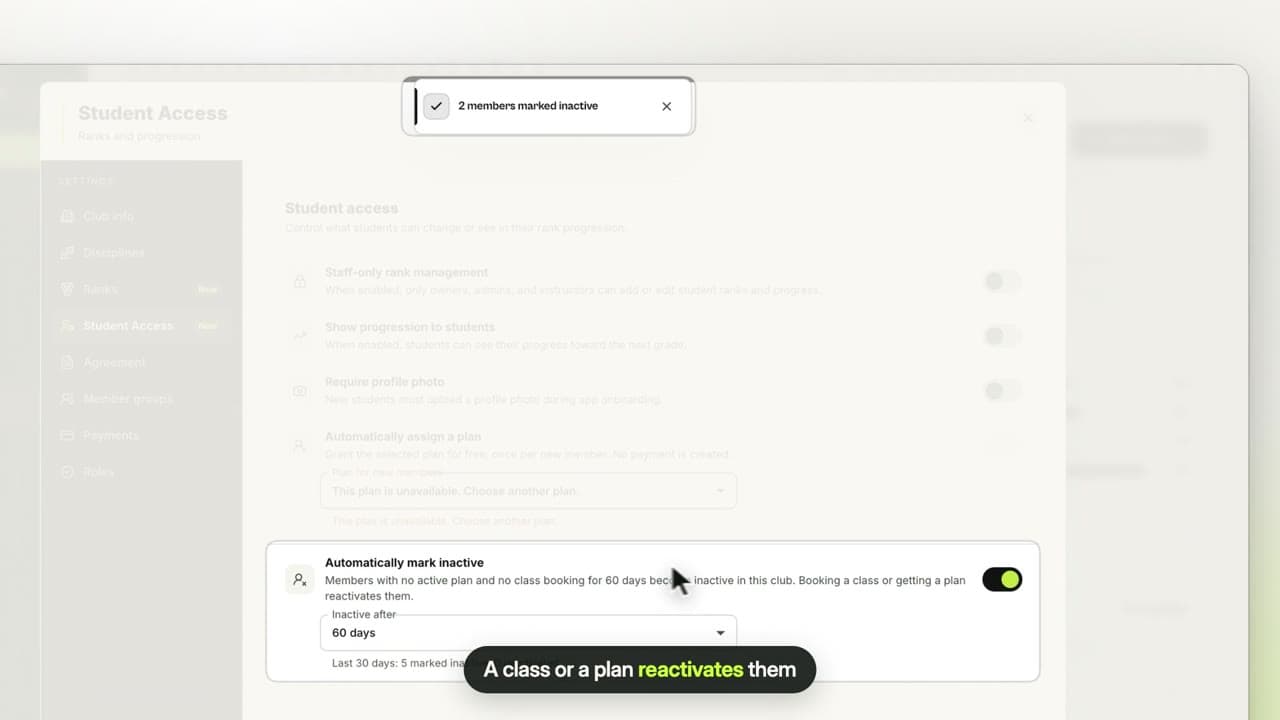
- To do this automatically after a period you choose, turn on Automatically mark inactive in Settings › Student Access.
Related guides
Run your academy with less admin and more time on the mat.
Start free