Everything in a member’s profile
A tour of the member profile: details and contacts, plans and payments, attendance, belt progress, safety notes and signed documents.
Where to find it: Dashboard · Members › member
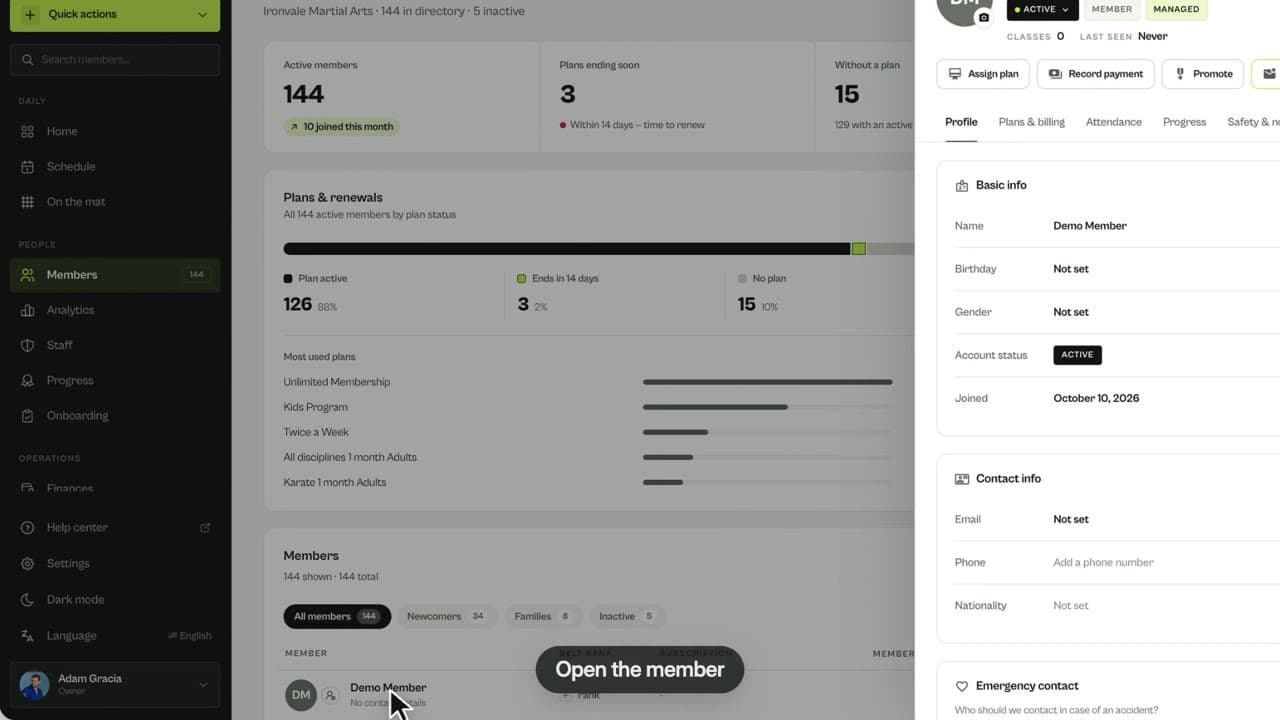
Click any member, from the Members list, the search box or a class roster, to open their profile. The header shows their status, role, belt, classes attended and when they were last seen.
Step by step
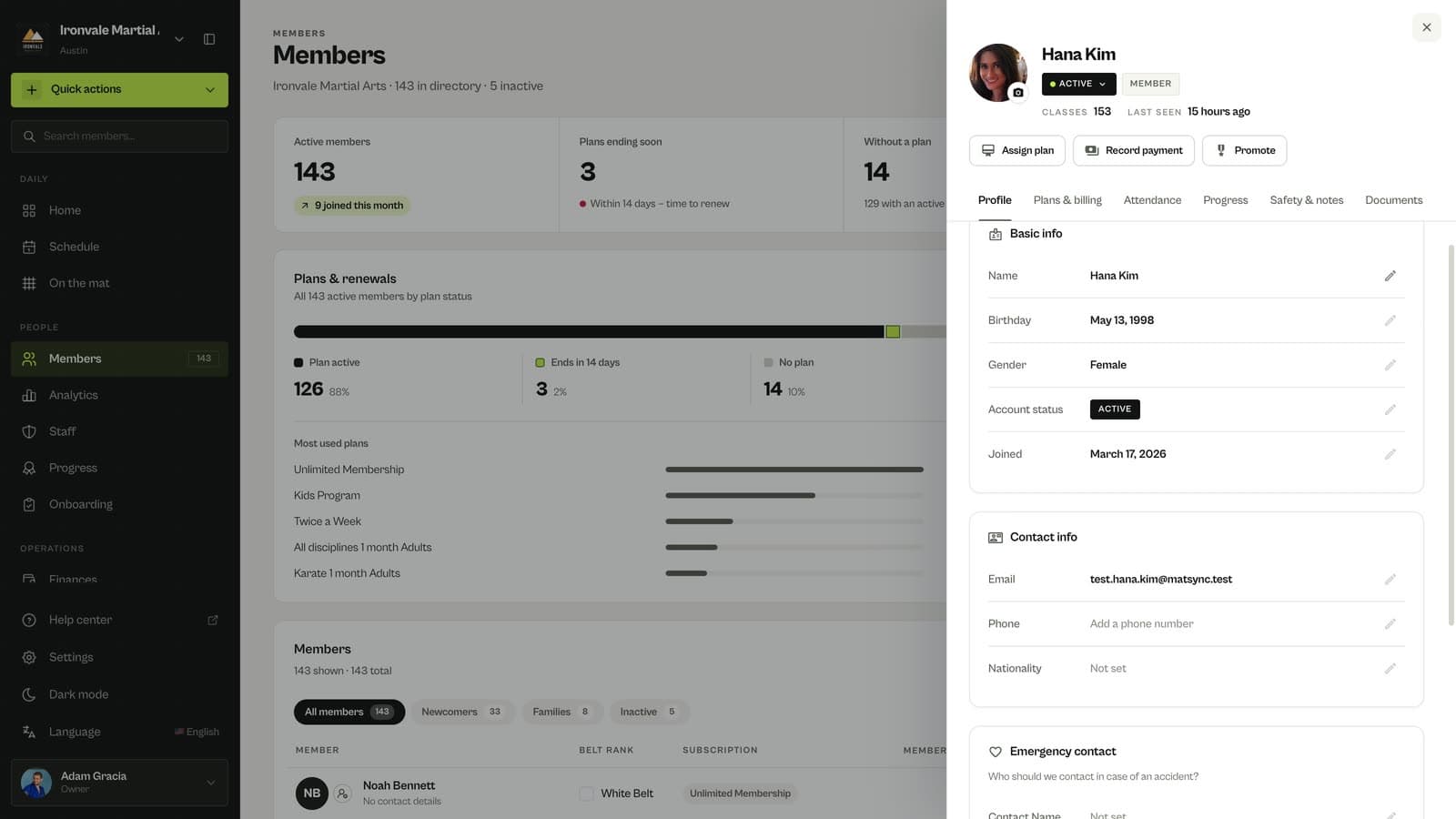
Profile
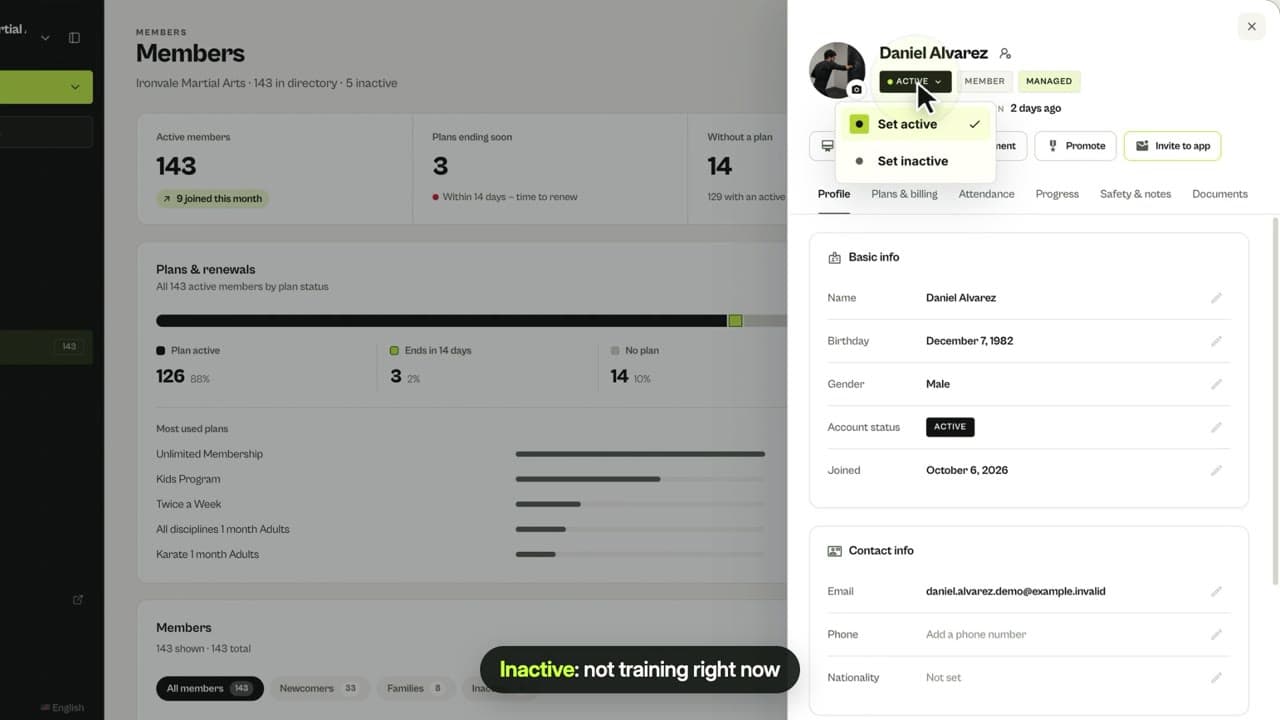
Name, birthday, gender, contact details, nationality and emergency contact. Click the pencil next to any field to edit it. Remove from club is at the bottom.
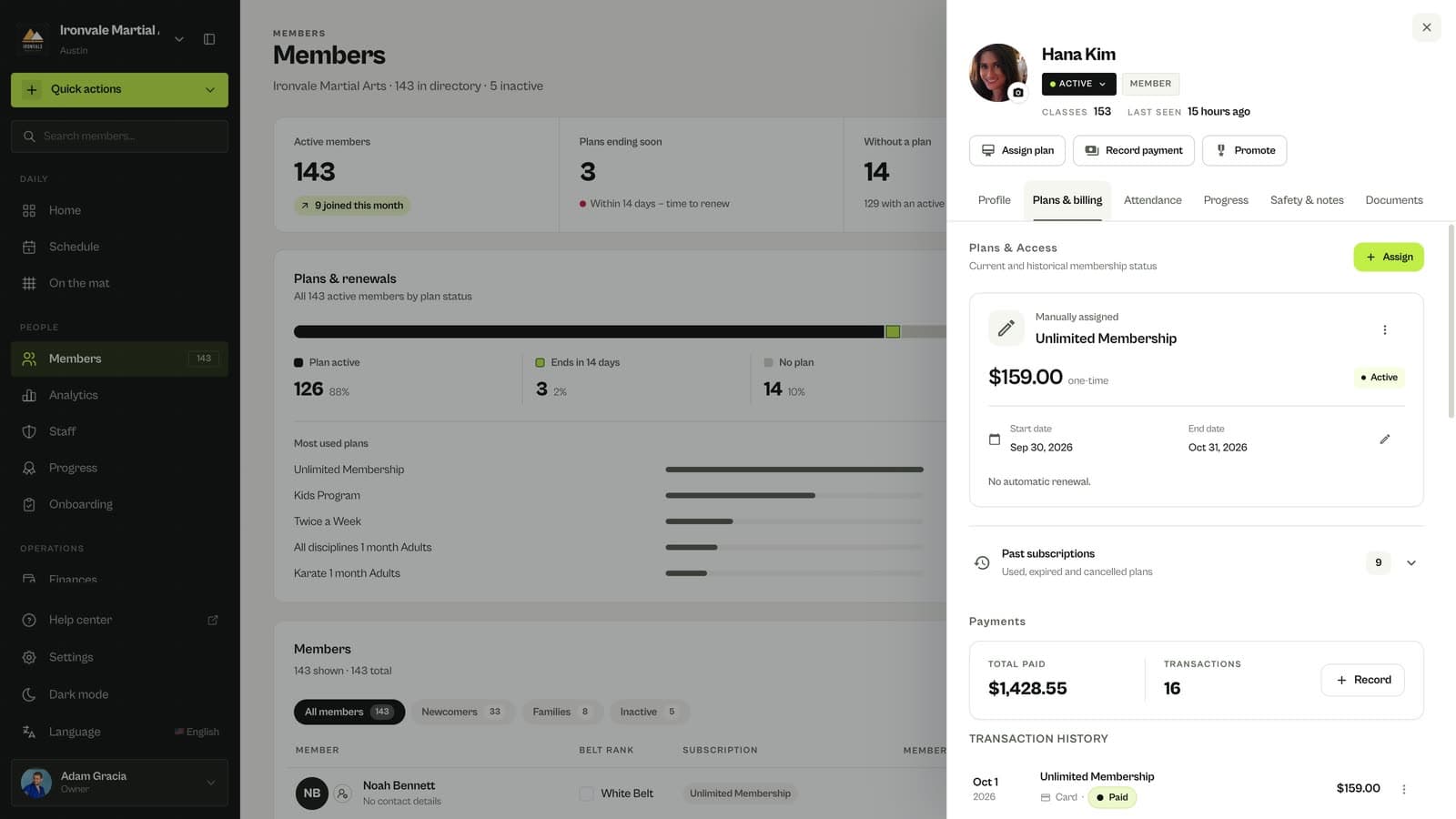
Plans & billing
Their current plan with its dates, past subscriptions, every payment and the billing messages MatSync sent them.
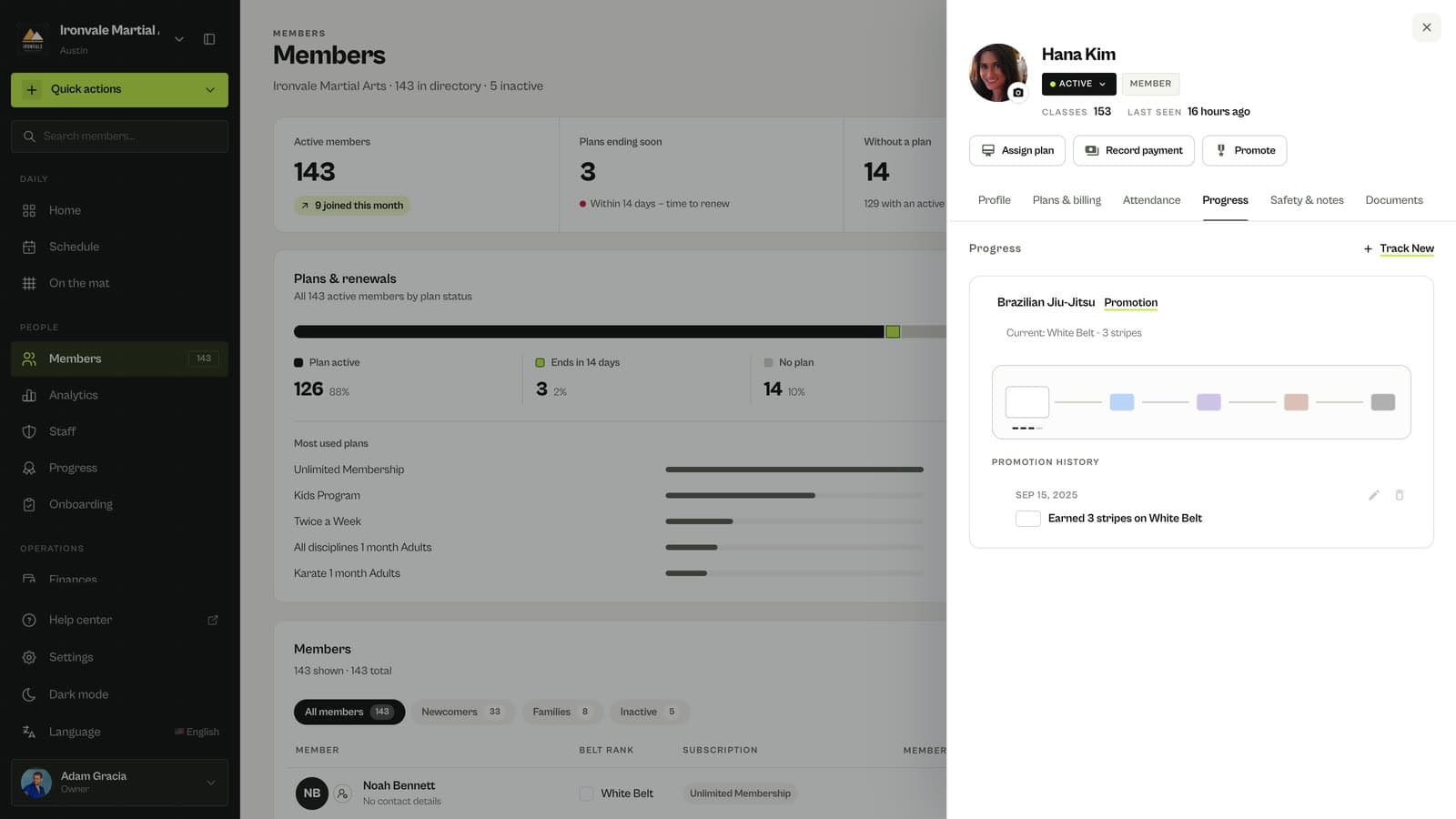
Attendance and Progress
Attendance shows classes per week and the latest bookings. Progress shows their belt per discipline and the promotion history.
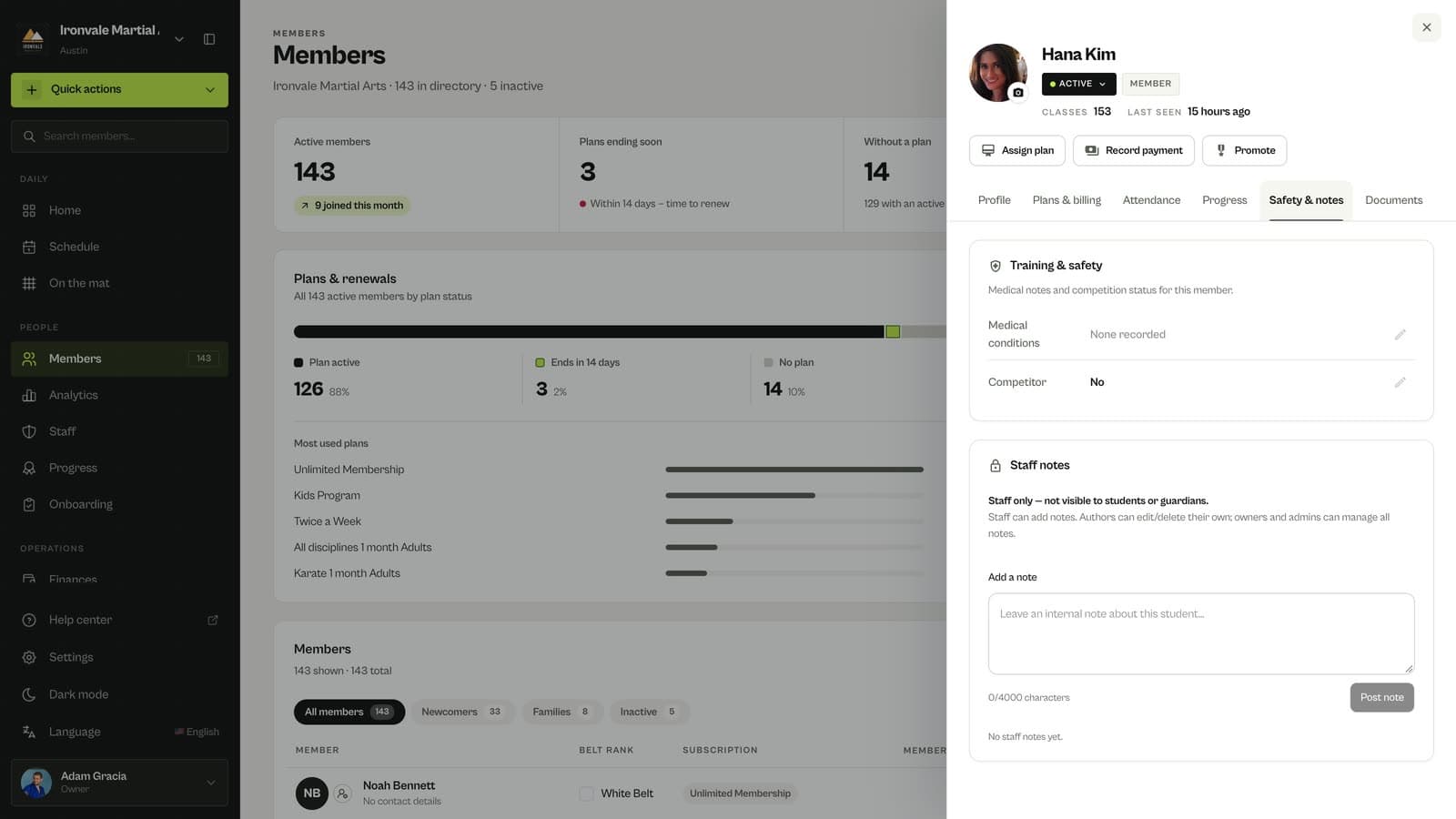
Safety & notes and Documents
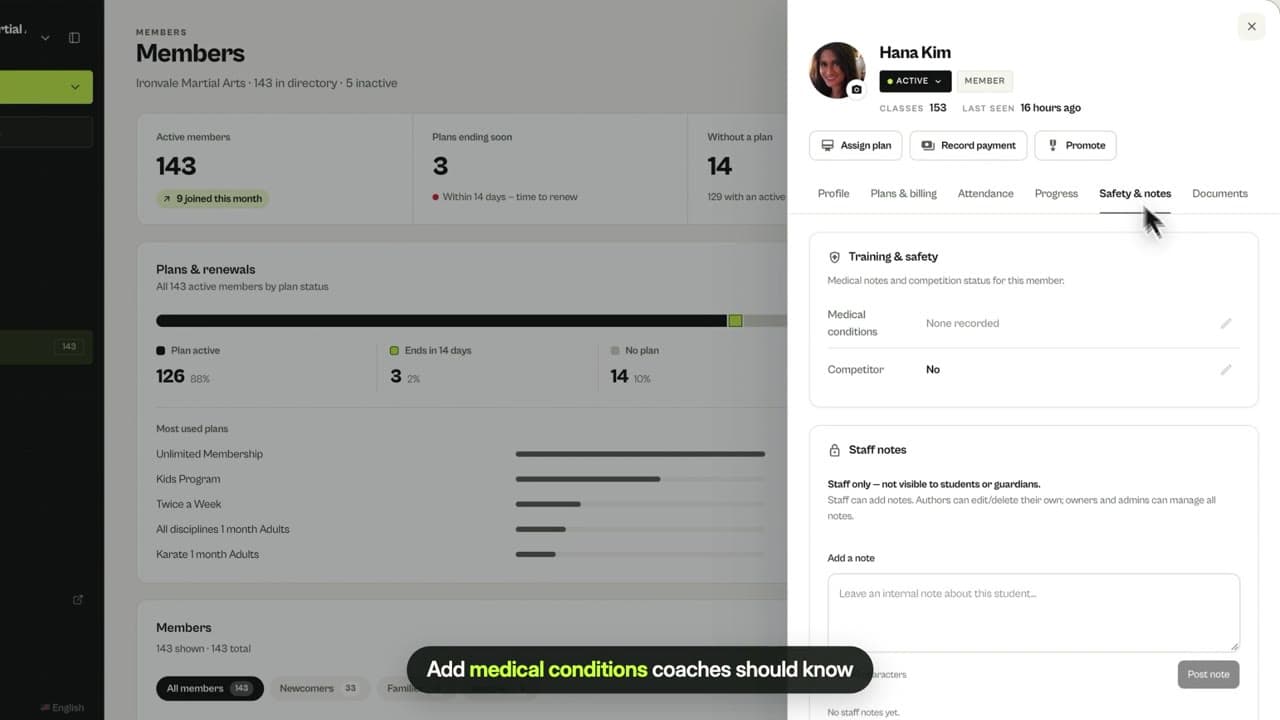
Safety & notes holds medical conditions, competitor status and private staff notes. Documents shows what the member filled in and signed when they registered.
Use the quick actions
Assign plan, Record payment and Promote sit above the tabs, so the most common jobs are one click away.
Good to know
- A Managed badge means the club created the profile and nobody has claimed it in the app yet. Invite to app sends them an invitation.
- Documents is visible to owners and admins only.
Related guides
Run your academy with less admin and more time on the mat.
Start free