MembersUpdated
How to add medical details and staff notes
Record medical conditions and competitor status for each member, and keep private staff notes that students and parents never see.
Where to find it: Dashboard · Members › member › Safety & notes
Step by step
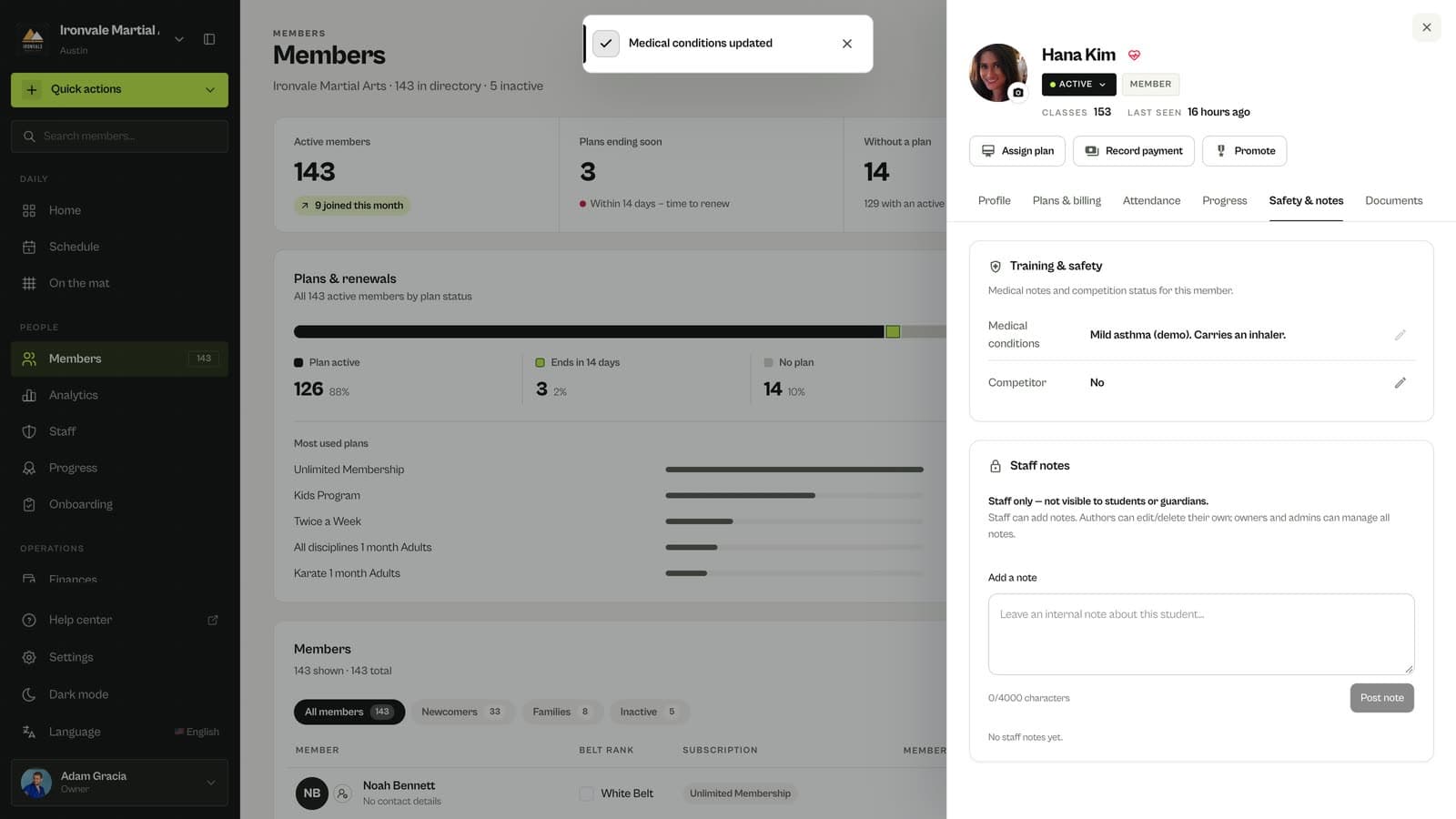
Add medical conditions
Open the member, go to Safety & notes and click the pencil next to Medical conditions. Describe anything coaches should know, then Save changes.
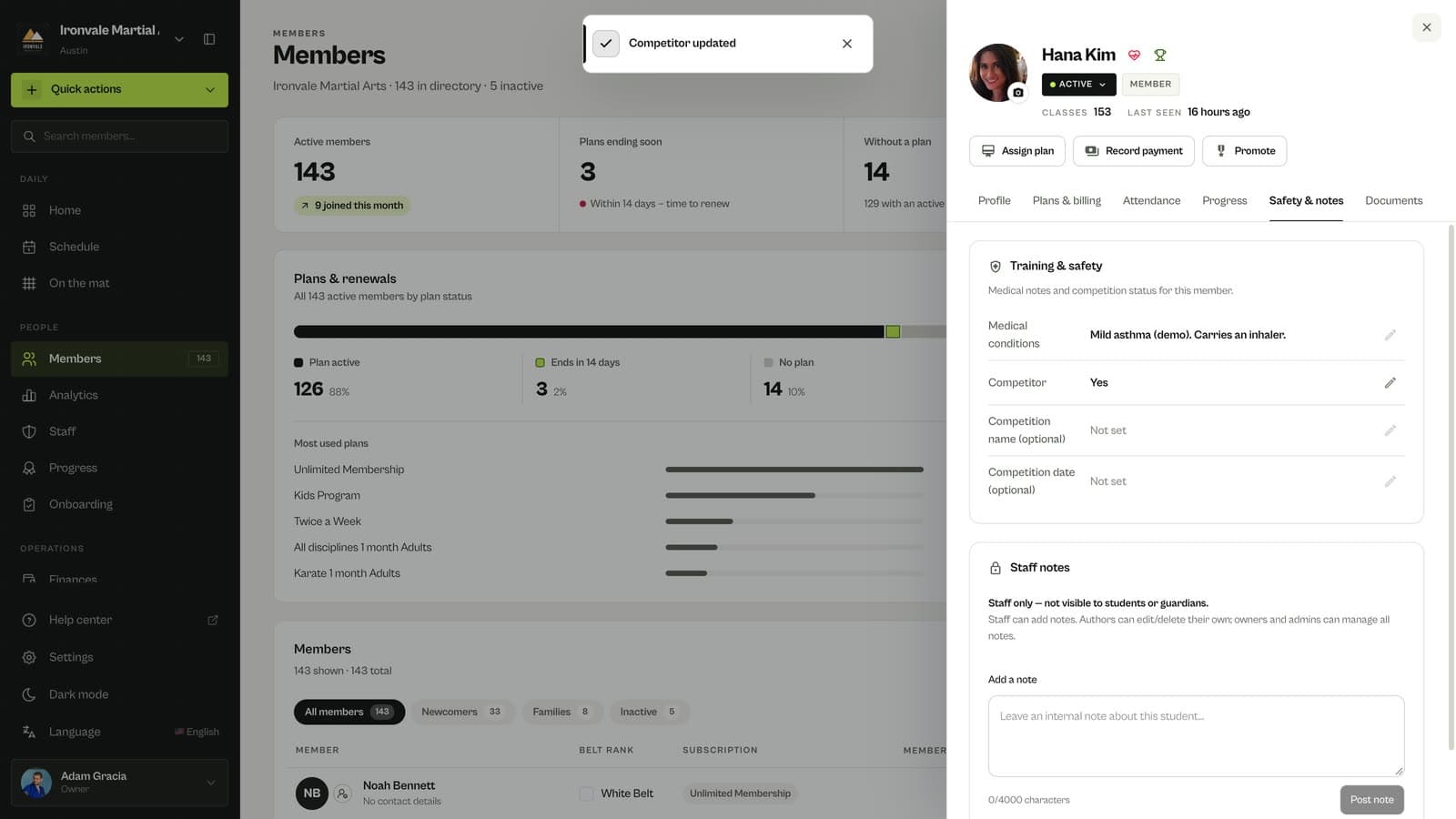
Mark competitors
Set Competitor to Yes. You can add the competition name and date if you like.
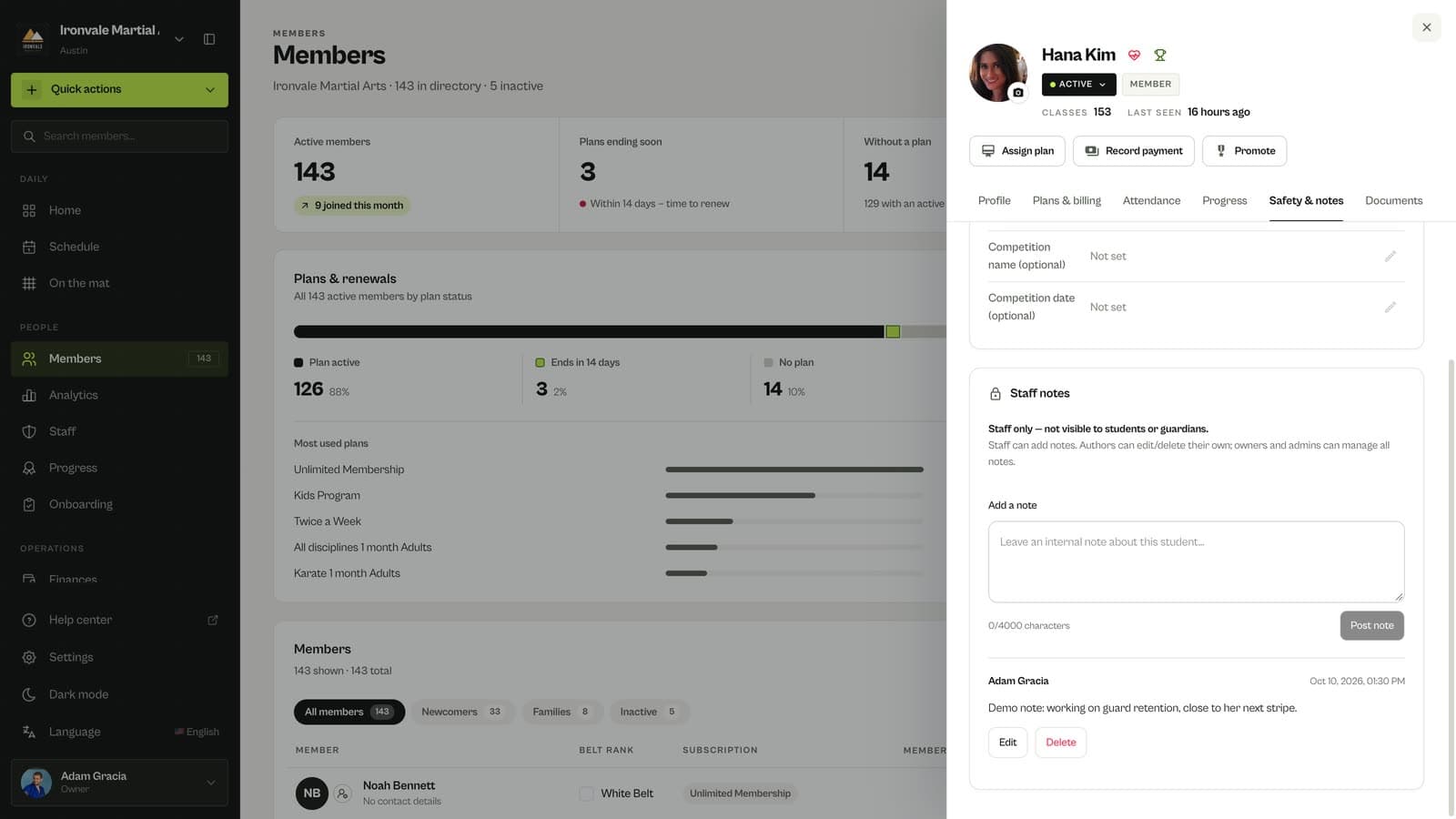
Write a staff note
Type in Add a note and click Post note. Each note shows who wrote it and when, and authors can edit or delete their own notes.
Good to know
- A heart icon next to a member’s name in rosters and lists means they have a medical note; a trophy means they compete. Hover over it to read the details.
- Members can add injuries in the app under Settings › Health & competition. Staff see the same information.
Questions
Who can see medical details and notes?
Owners, admins and instructors can read them. Only owners and admins can change medical details. Staff notes are never shown to students or parents.
Related guides
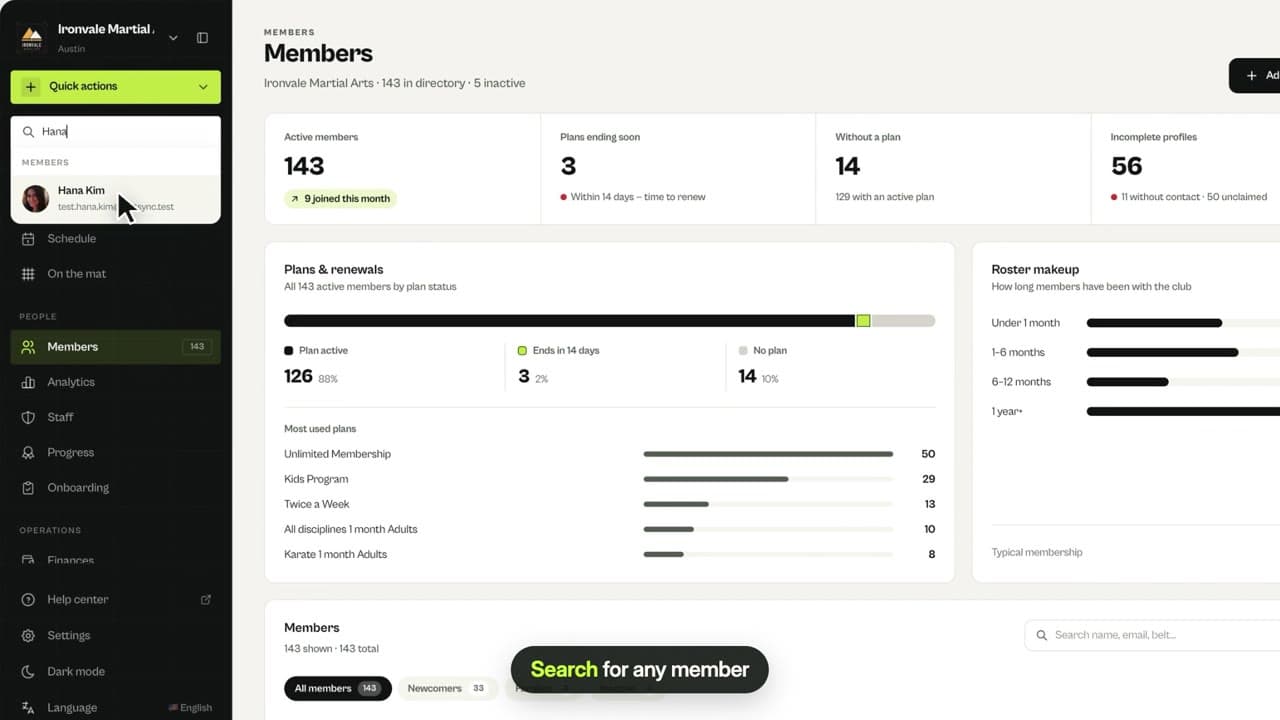
Run your academy with less admin and more time on the mat.
Start free